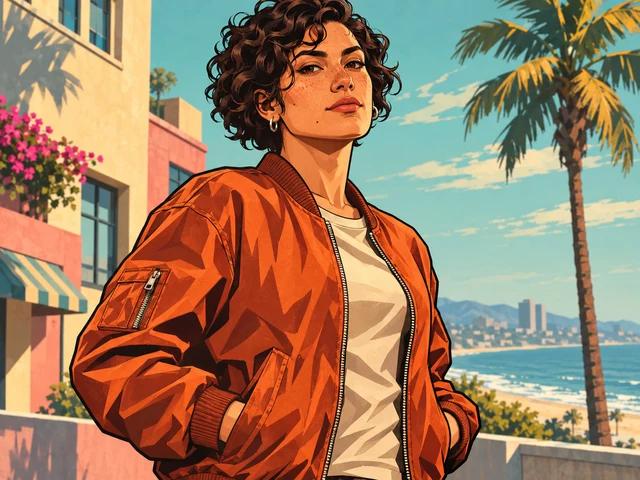
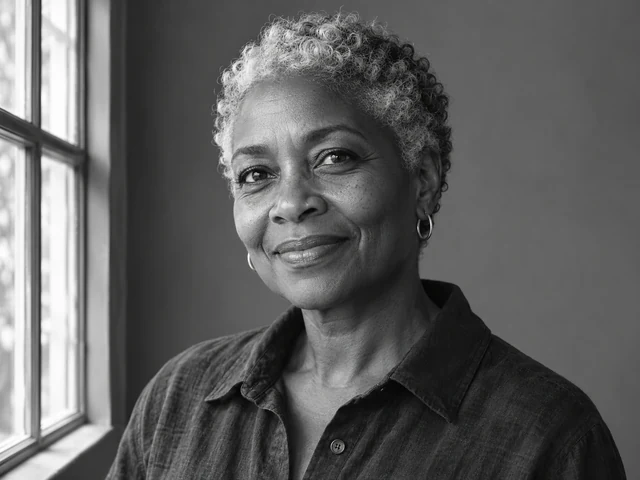
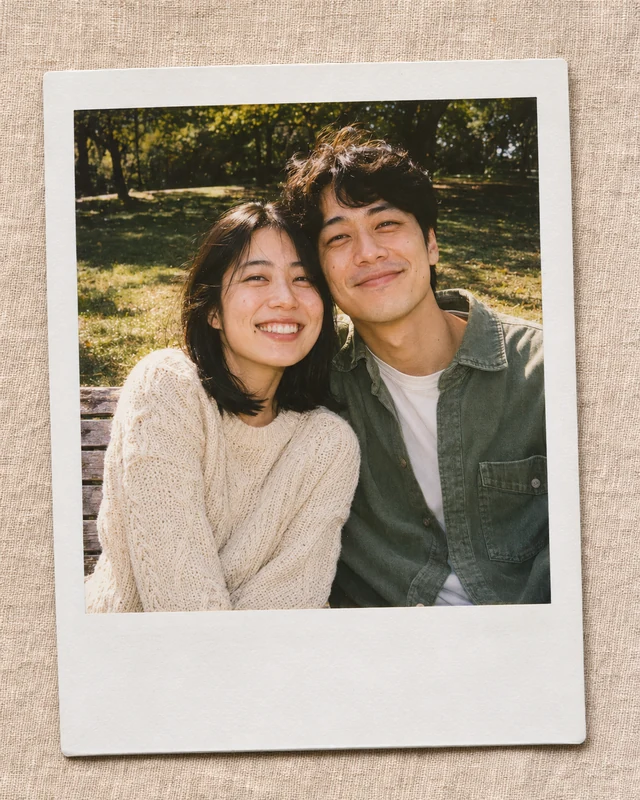
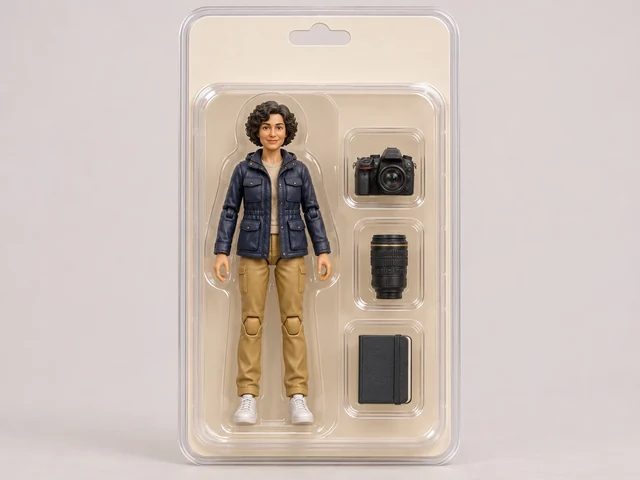
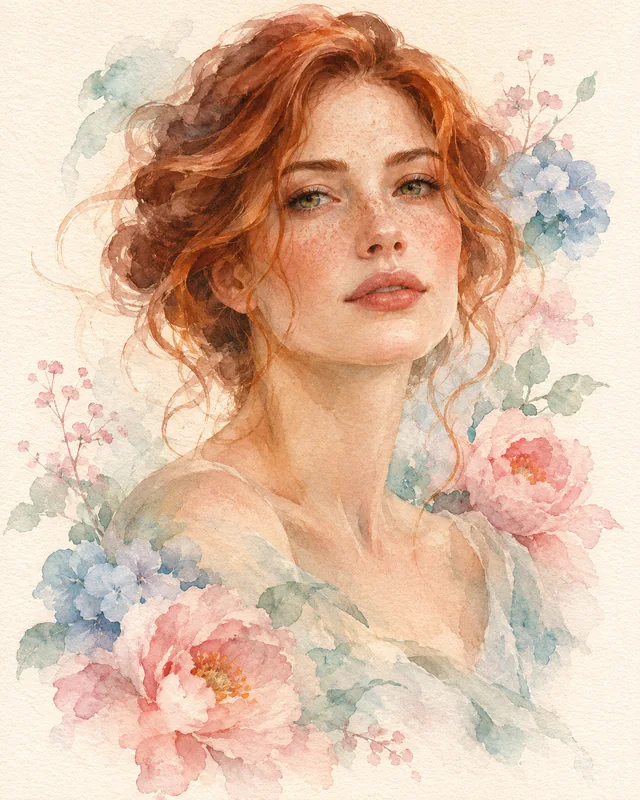
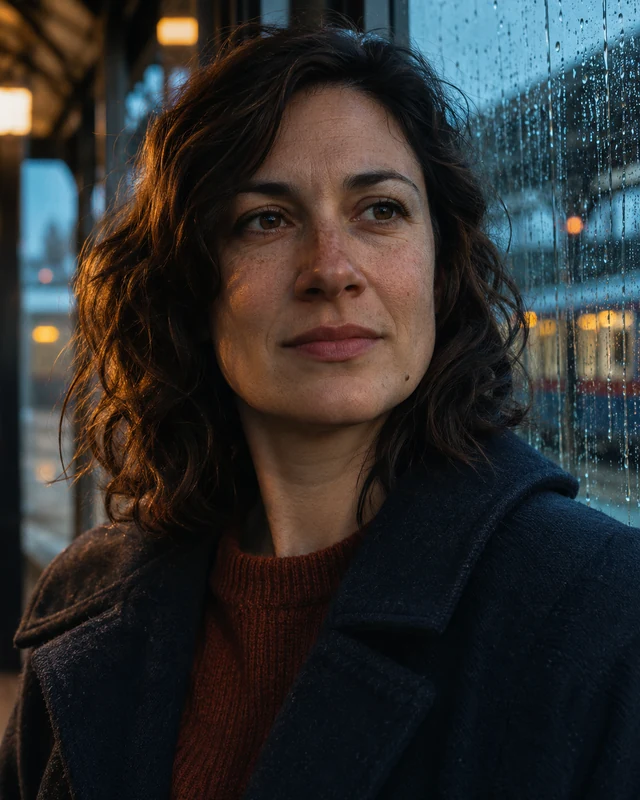
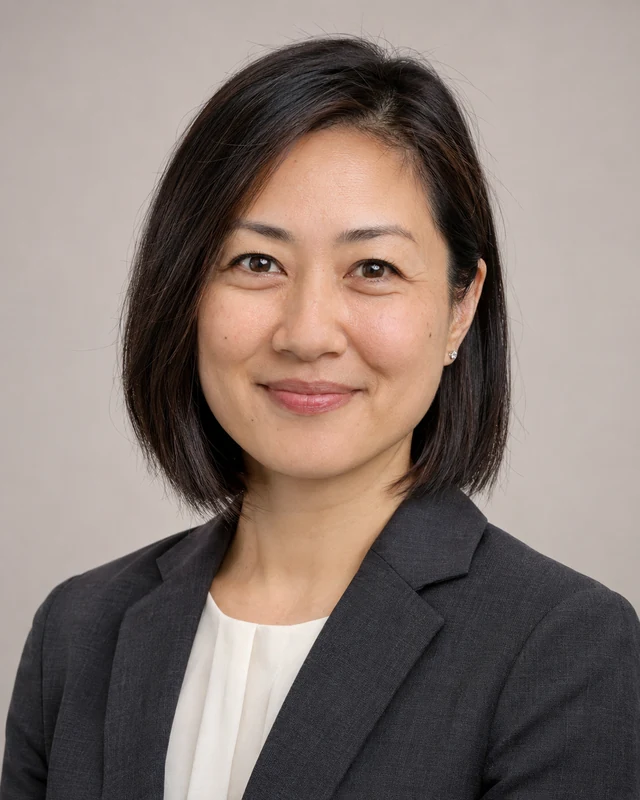
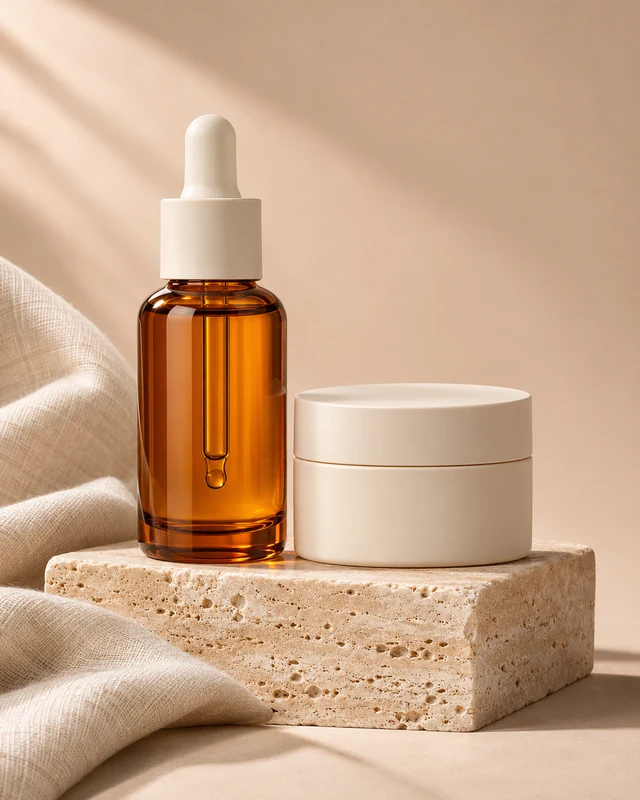
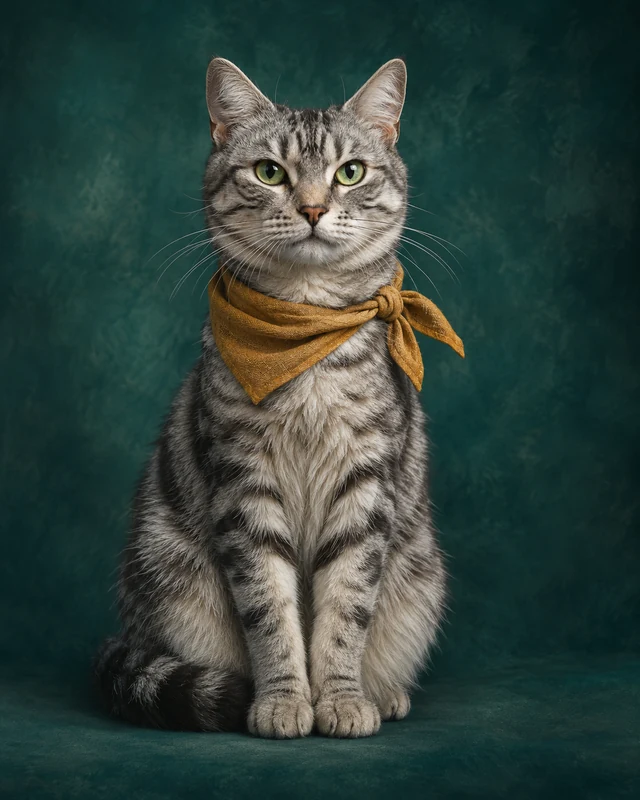
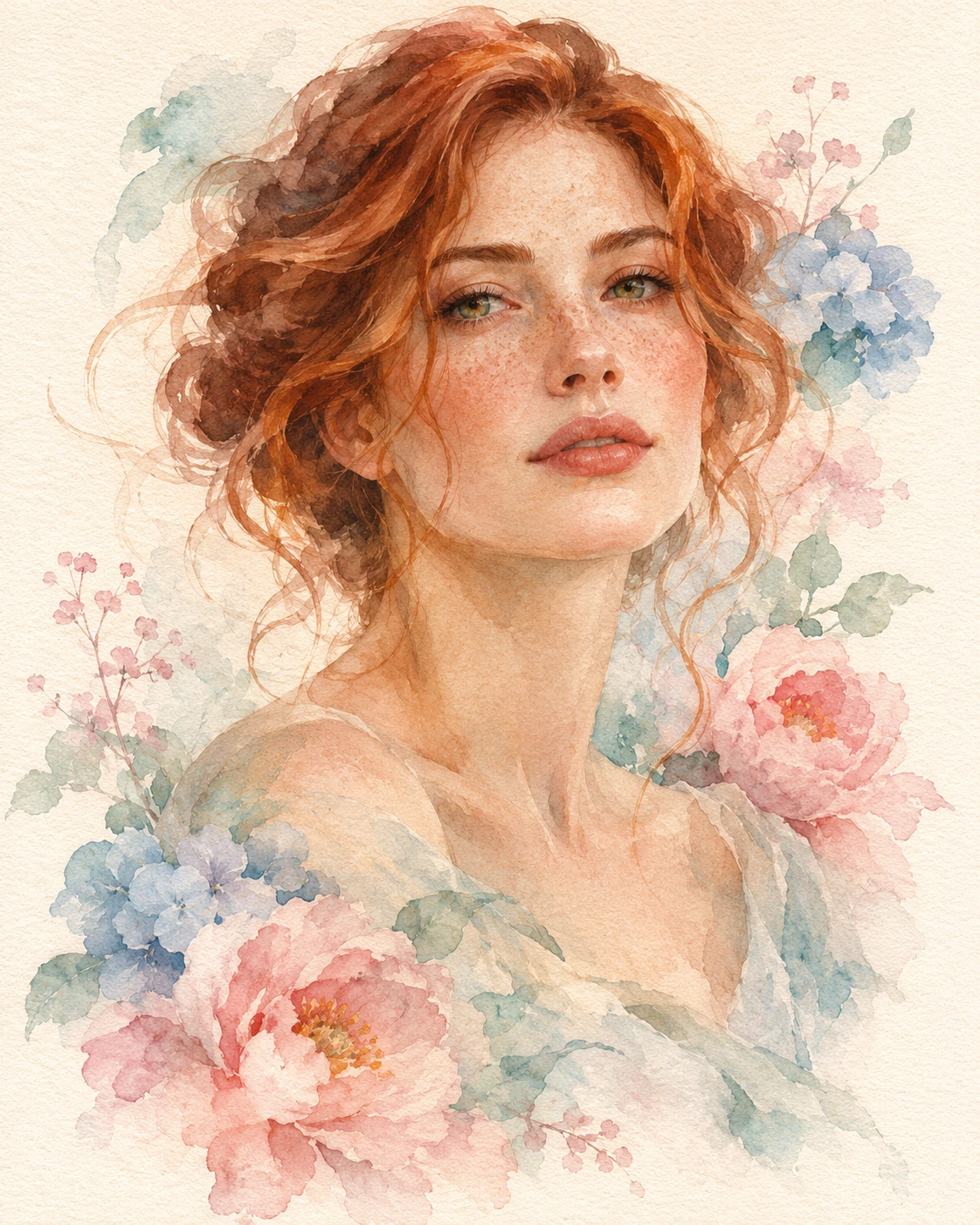
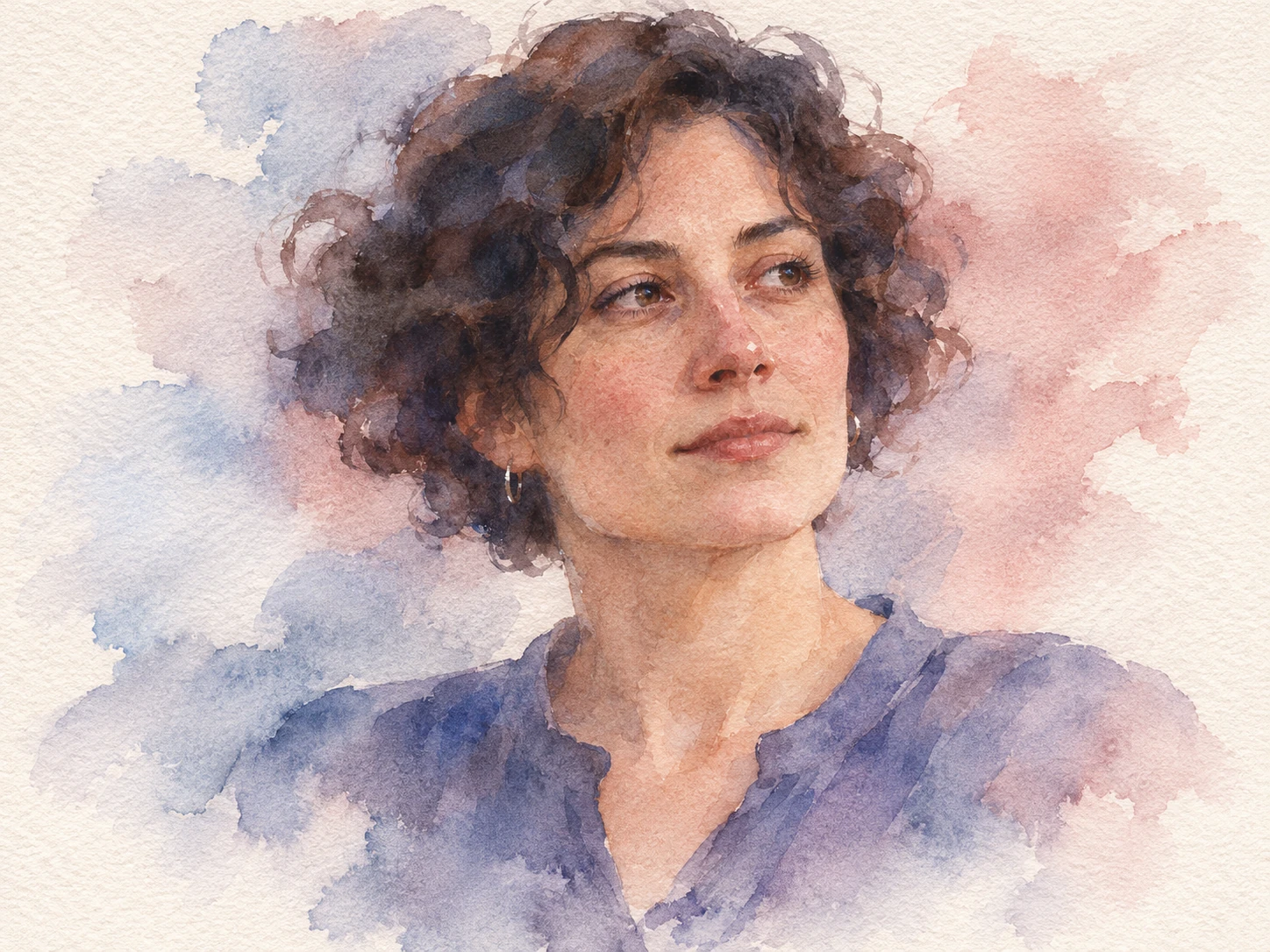
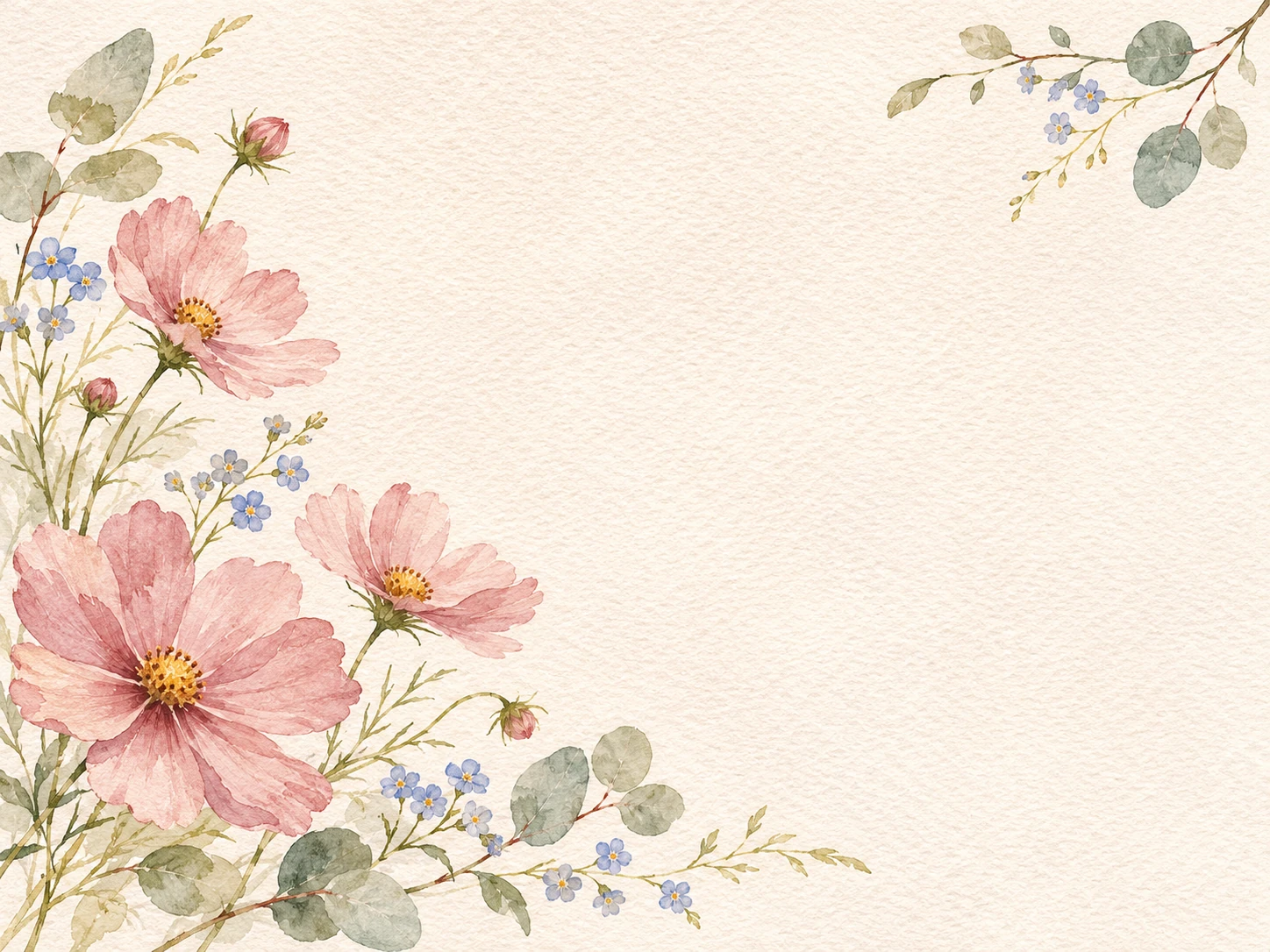
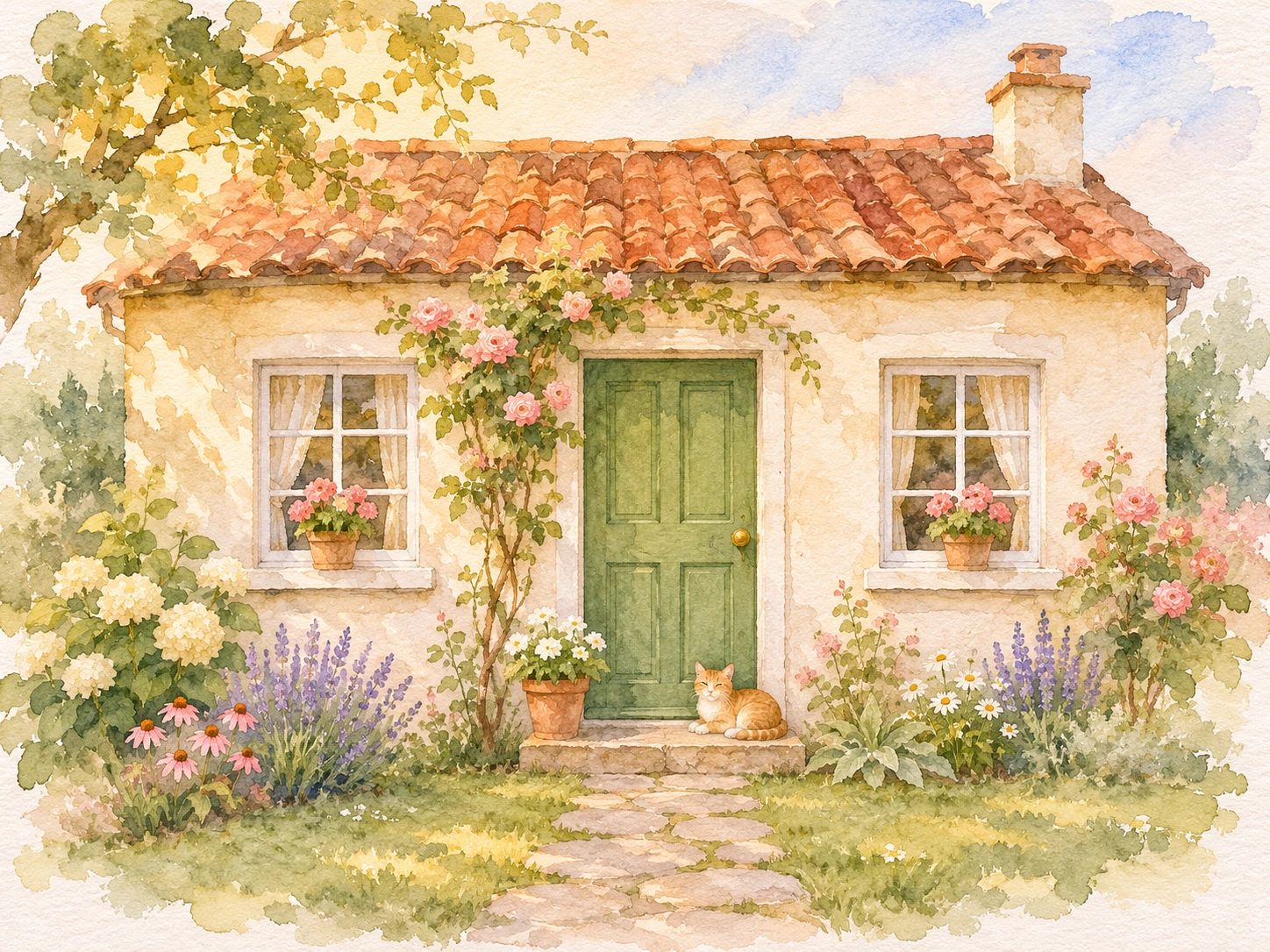
Translate a photo or a written idea into a watercolor-style image with transparent color, soft edges and visible paper character. Decide which part of the scene should stay detailed and which areas can dissolve into loose washes. The preset works as an art direction for the image model, letting you describe a botanical study, a quiet landscape or a personal portrait without needing painting equipment.
Illustrative style preview. Generated results vary with your prompt and reference photos.
What you can create with the AI Watercolor Generator
Choose the subject, purpose and visual priorities before adding detail. These decisions give you a clearer brief to refine.
Use transparent color washes
Watercolor feels convincing when light appears to pass through the pigment rather than sit on an opaque surface. Ask for transparent layers, gentle color variation and small areas of exposed paper. Keep the palette limited if you want delicate flowers, a pale sky or a soft portrait instead of dense poster-like color.
Choose a focal area that stays readable, such as a face, a flower center or a house doorway. Let less important edges soften into the paper. If every edge is equally sharp the picture may feel like a photograph with texture; if everything dissolves, the subject can become difficult to recognize.
White space is part of the composition, not an unfinished area. Place a botanical sprig off center, leave a pale margin around a portrait or use open sky above a landscape. Explain where you need room if the image will later sit on an invitation, a card or a presentation slide.
A reference can guide the shape of a house, the arrangement of a bouquet or the appearance of a pet. Describe the elements you want preserved before asking for loose brushwork. Simplify clutter and remove unnecessary signage so the painted treatment supports the scene rather than competing with it.
Start from text or reference photos, then check the format and cost before generating.
Step 1
Choose your starting point
Sign in when you are ready to upload or generate. Describe a new subject, or add clear reference images. The editor accepts up to eight PNG, JPEG or WebP references. Upload references one at a time. If a file exceeds the upload limit, resize it and try again.
Watercolor
1:116:92K
Step 2
Add details and select the format
Keep the watercolor preset selected and describe the scene, pose, lighting and important details in your own words. Choose an aspect ratio for the intended use and select 1K, 2K or 4K. The displayed credit estimate updates with the chosen resolution.
Step 3
Review, refine and download
Submit the request and follow the image status in the preview area. Download a successful result and inspect important details at full size. Reuse the prompt for another version, changing one important detail at a time. Generation time varies; follow any error instructions before submitting again.
Both use the same model. Presets supply a starting direction; custom prompts let you describe the complete treatment.
Decision
This style preset
Custom prompt
Visual direction
Begins with watercolor instructions.
You describe the medium, light and finish.
Creative control
Add your subject, setting and specific details.
Define the full image direction from scratch.
Reference photos
Optional references guide appearance and composition.
The same reference-upload options are available.
Output settings
Choose the displayed ratio and resolution options.
Choose from the same output settings.
Review before use
Check the subject and the style interpretation.
Check the subject and every requested treatment.
Choose a use for your next image
Plan for the destination: avatars, illustrations and presentation images need different crops and background detail.
01
Botanical illustrations
Arrange a flower, leaf or small branch with generous paper margins. Describe its colors and growth pattern, then review whether the main botanical shapes remain plausible.
Reinterpret a familiar building or a memorable landscape. Keep its distinctive roofline, doorway or horizon as the visual anchor while softening incidental background details.
Create a gentle illustration with a blank area for your own message. Add final typography separately so spelling, alignment and print placement remain under your control.
Use clear reference photos and describe which markings, hair details or expressions matter. Expect a painted interpretation and inspect likeness before sharing a personal gift.
Adapt these prompts to your subject. Illustrations show a direction; they do not promise an identical generated result.
PROMPT EXAMPLE 1
Garden flower study
A watercolor illustration of three pale pink cosmos flowers with slender green stems, transparent rose washes, delicate pigment blooms and textured ivory paper. Keep the flower centers defined and let the outer petal edges soften. Off-center botanical arrangement with generous white space, no writing.
Fewer stems make a small card illustration easier to read.
PROMPT EXAMPLE 2
Coastal cottage memory
Turn the reference cottage into a loose watercolor painting, preserving the blue front door and low tiled roof. Warm afternoon light, soft sandy path, faint sea on the horizon, transparent ochre and blue-gray washes, visible paper grain. Keep the doorway detailed and the distant background understated.
Name the architectural detail that makes the building recognizable.
PROMPT EXAMPLE 3
Soft pet portrait
A watercolor portrait of the dog in the reference, keeping the white chest marking, brown ears and tilted head. Warm gray and honey-colored washes on lightly textured paper, expressive dark eyes, loose edges around the fur and an almost empty cream background. Portrait framing, no decorative text.
Keep eye detail sharper than the surrounding fur for a clear focal point.
Small decisions that improve the brief
Explain what must stay, what may change and where the image will appear. Review against those priorities.
Be specific about the medium
Terms such as transparent wash, pigment bloom, paper grain and soft edges describe different visible effects. Choose two or three that suit the subject. Requesting watercolor, oil paint, charcoal and glossy 3D rendering together creates competing directions and makes refinement less predictable.
Protect the focal point
When a portrait becomes too abstract, ask for clearly defined eyes and a recognizable face while keeping the background loose. For a building, specify the doorway and roofline. This preserves the purpose of the picture without asking every small detail to look photographic.
Check the intended size
Paper texture and subtle washes can disappear when an image is very small. Preview the result at the size of a card, avatar or slide rather than only full-screen. For printing, check the selected output dimensions and your printer’s requirements before committing to a layout.
Questions before you create
What does the AI Watercolor Generator do?
It applies a watercolor creative direction to Nano Banana Pro, combined with your description and any reference images. The preset is a starting brief, not a fixed filter. You can still specify the subject, background, colors and framing to fit a particular idea.
Can I start without a reference photo?
Yes. Describe the subject and the scene in text to create a new image. Add a reference when you want to guide a particular appearance, shape or composition. Uploading a photo does not guarantee an exact copy of a face, object or arrangement.
How should I choose reference images?
Choose clear, relevant photos and explain which details each should guide. Avoid contradictory appearances or product versions. Use images you are entitled to upload, within the file formats and limits described in the upload step.
How much detail can I put in the prompt?
The combined style instructions and your text must fit the image model’s 5,000-character limit. The available space shown in the editor accounts for the preset. Prioritize the subject, pose, setting, light and must-keep details; conflicting requests are less useful than a focused description.
What does a generation cost?
Generating uses credits from your signed-in account. The estimate beside Generate changes with the chosen resolution. Available image sizes are 1K, 2K and 4K. Each new image or video request has its own credit cost; choosing a larger size does not guarantee a better creative interpretation.
Can I revise the image or turn it into a video?
You can reuse the prompt, change the brief and submit another image request. Download a successful result or send it to the video generator as a starting image. A video is a separate generation with its own settings and credit cost; it is not included in the image request.
Start with one clear idea
Add a reference or describe your subject. Choose the format, check the credit estimate and create a first version to refine.