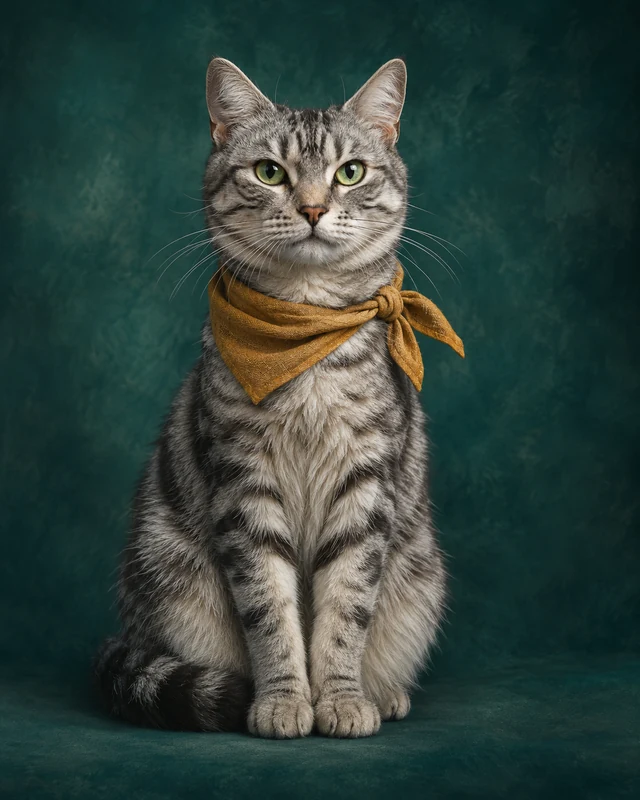
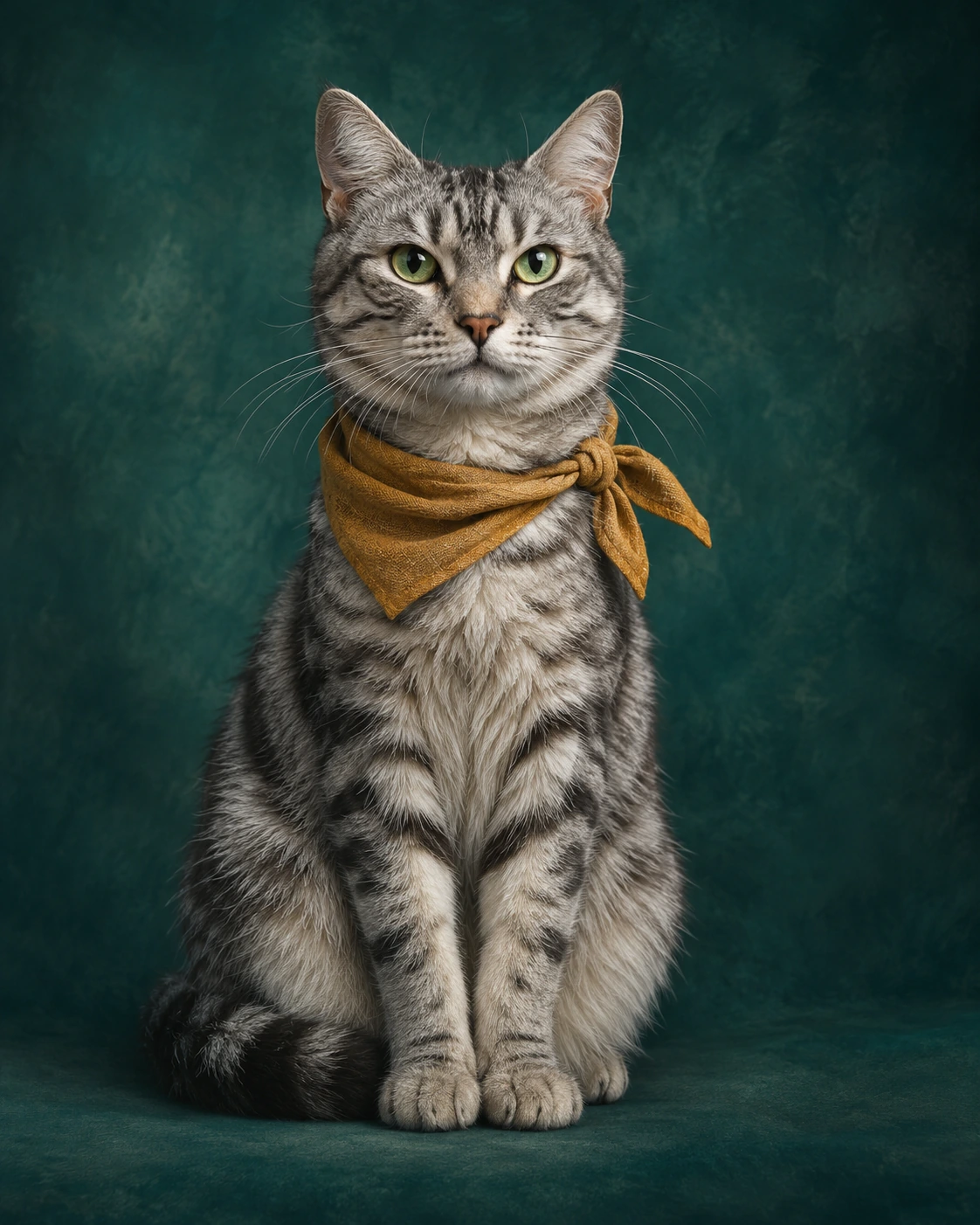
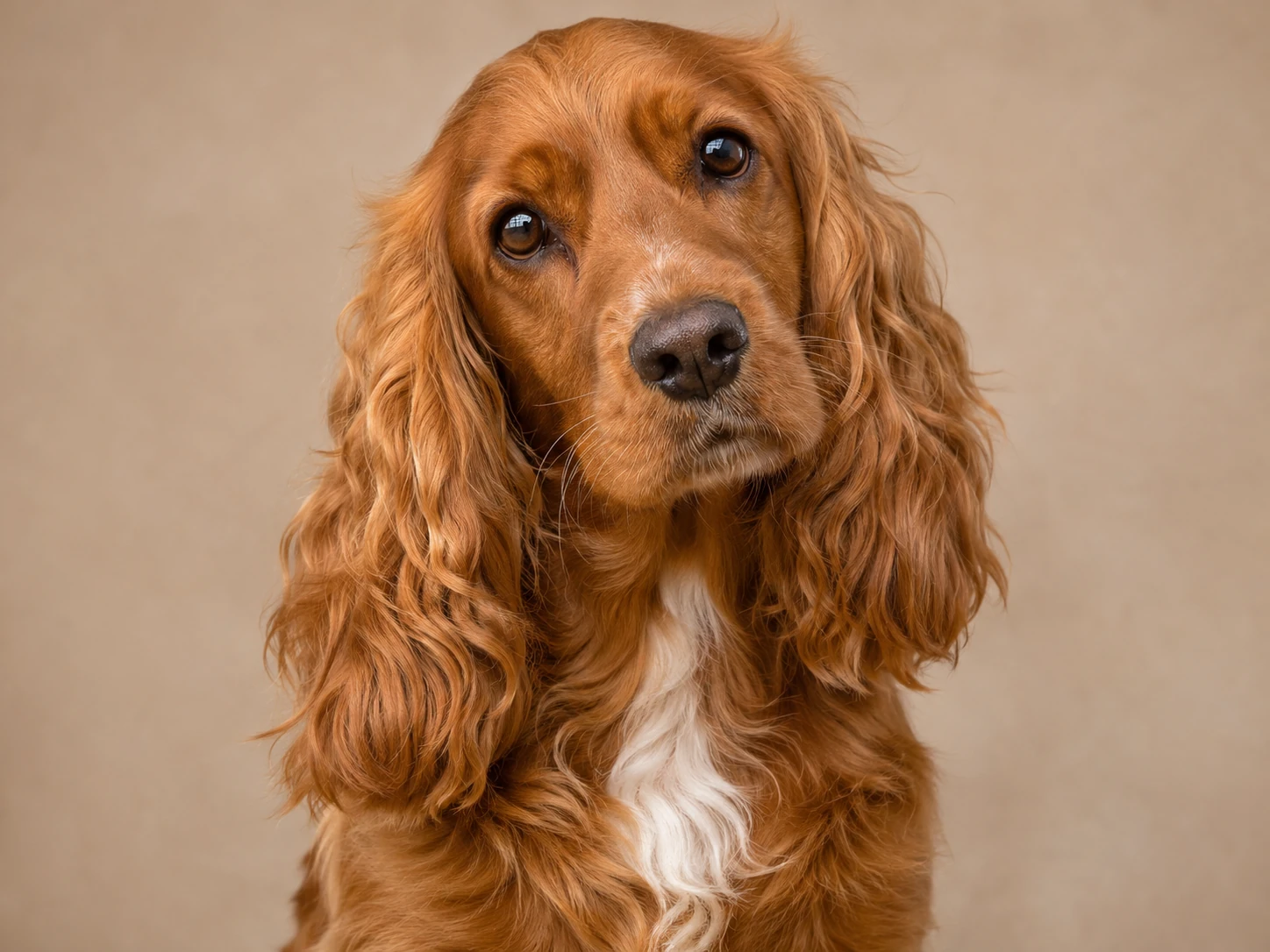
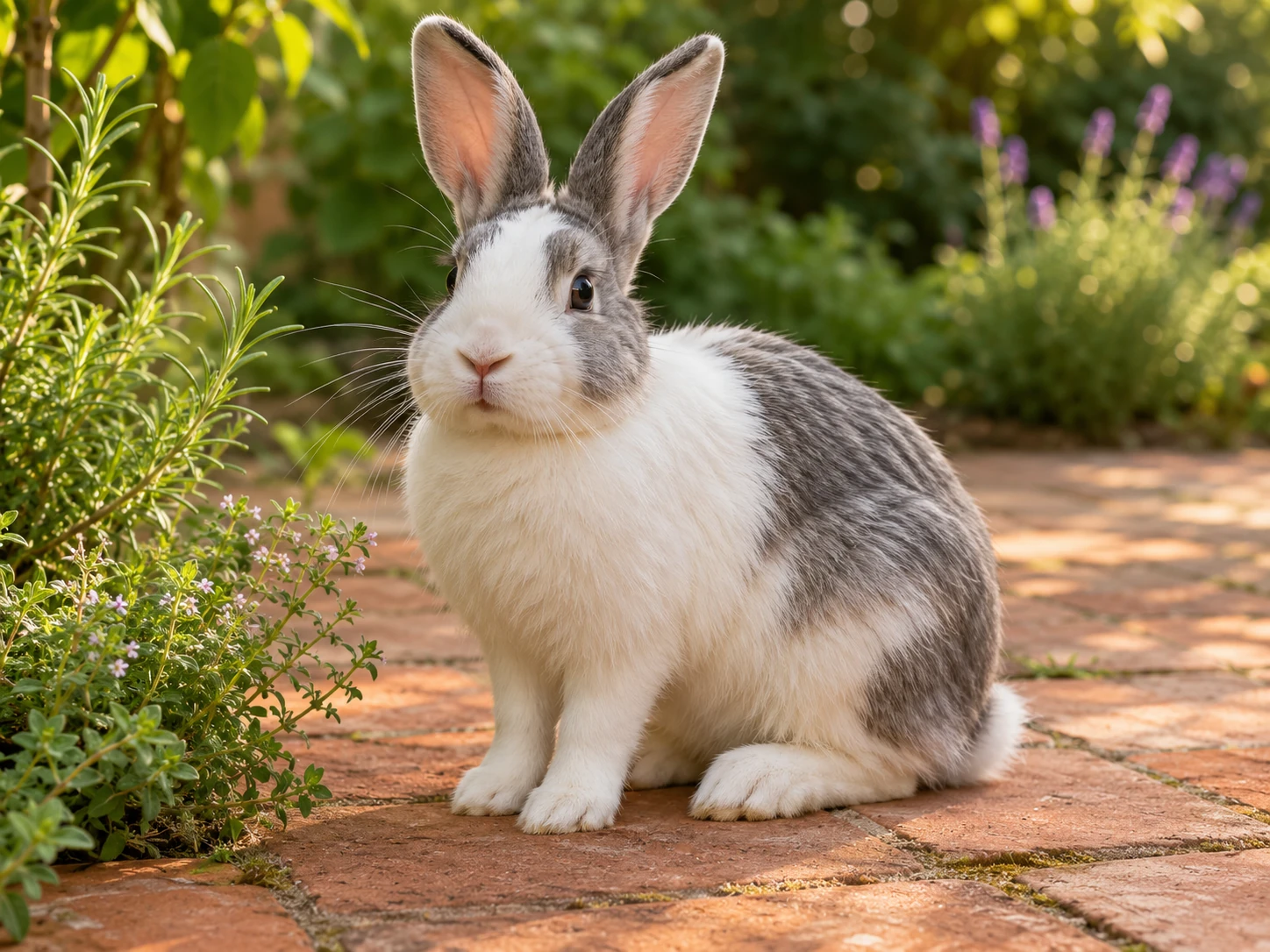
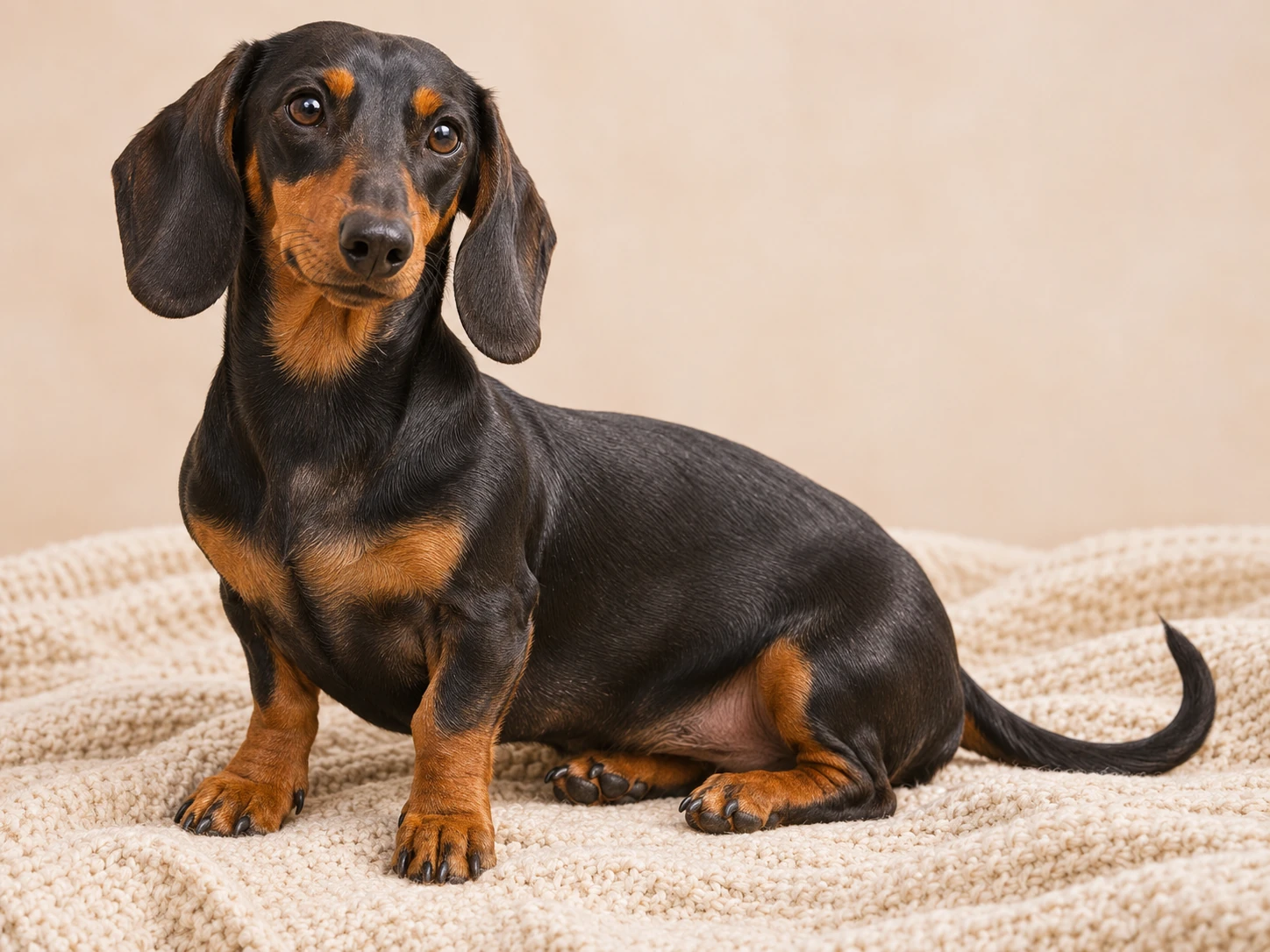
Create a portrait that puts your pet’s expression and distinctive markings first. Upload a clear photo or describe an imagined animal, then choose a pose, setting and light. The preset favors natural detail and a readable face. You can explore a quiet studio portrait, a garden scene or a playful seasonal concept while checking that the result still reflects the animal you intended.
Illustrative style preview. Generated results vary with your prompt and reference photos.
What you can create with the AI Pet Portrait Generator
Choose the subject, purpose and visual priorities before adding detail. These decisions give you a clearer brief to refine.
Preserve distinctive markings
Describe the features that make the pet recognizable: a white chest patch, one darker ear, a curled tail or a stripe across the nose. Reference photos help, but small markings can change during generation. Point out the most important ones and compare them carefully before treating the image as a personal keepsake.
A pet portrait often works best when the eyes are clear and the camera sits near the animal’s eye level. Describe a calm expression, a head tilt or a curious gaze. Avoid making the eyes unnaturally large if you want a photographic result, and check that reflections follow the chosen light direction.
A simple studio background emphasizes the face, while a garden path or a favorite blanket can suggest a familiar environment. Keep the number of props low and match their scale to the animal. If you request clothing or accessories, describe a comfortable simple fit and review the body shape underneath.
Ask for natural fur direction, clear paws and a pose that the animal could realistically hold. Long fur can hide extra limbs or awkward joints, so inspect the outline as well as the face. A simpler seated pose is easier to review than a complicated action scene with several animals crossing each other.
Start from text or reference photos, then check the format and cost before generating.
Step 1
Choose your starting point
Sign in when you are ready to upload or generate. Describe a new subject, or add clear reference images. The editor accepts up to eight PNG, JPEG or WebP references. Upload references one at a time. If a file exceeds the upload limit, resize it and try again.
Pet Portrait
1:116:92K
Step 2
Add details and select the format
Keep the pet portrait preset selected and describe the scene, pose, lighting and important details in your own words. Choose an aspect ratio for the intended use and select 1K, 2K or 4K. The displayed credit estimate updates with the chosen resolution.
Step 3
Review, refine and download
Submit the request and follow the image status in the preview area. Download a successful result and inspect important details at full size. Reuse the prompt for another version, changing one important detail at a time. Generation time varies; follow any error instructions before submitting again.
Both use the same model. Presets supply a starting direction; custom prompts let you describe the complete treatment.
Decision
This style preset
Custom prompt
Visual direction
Begins with pet portrait instructions.
You describe the medium, light and finish.
Creative control
Add your subject, setting and specific details.
Define the full image direction from scratch.
Reference photos
Optional references guide appearance and composition.
The same reference-upload options are available.
Output settings
Choose the displayed ratio and resolution options.
Choose from the same output settings.
Review before use
Check the subject and the style interpretation.
Check the subject and every requested treatment.
Choose a use for your next image
Plan for the destination: avatars, illustrations and presentation images need different crops and background detail.
01
Pet profile pictures
Make a close portrait with enough room around the ears. Preview it in a circular crop and ensure the nose, eyes and most recognizable markings remain visible.
Create a quiet portrait from a meaningful photo. Keep the animal’s familiar expression and coat pattern as the priority, with a background that does not distract from the subject.
Try autumn leaves, a spring garden or a soft winter blanket. Keep seasonal details secondary and avoid accessories that hide the face or create confusing body shapes.
Build an original animal character around a specific personality, such as curious, gentle or mischievous. Describe a single action and check that the intended emotion reads clearly.
Adapt these prompts to your subject. Illustrations show a direction; they do not promise an identical generated result.
PROMPT EXAMPLE 1
Warm studio corgi
A natural pet portrait of the corgi in the reference, preserving the tan ears, white chest and narrow white stripe on the nose. Seated at eye level against a warm beige studio background, soft light from the left, detailed but natural fur and a relaxed open-mouth expression. Keep both ears inside the frame.
Write down any asymmetrical markings that the reference alone may not preserve.
PROMPT EXAMPLE 2
Garden cat portrait
A close portrait of a fictional gray tabby cat sitting beside a low garden wall, green eyes looking toward the camera, natural whiskers and softly layered fur. Late-afternoon light, pale flowers in gentle background blur and a calm curious expression. Eye-level camera, simple composition, no collar lettering.
Keep the flowers behind the face rather than crossing the whiskers.
PROMPT EXAMPLE 3
Autumn woodland companion
A photographic portrait of a small fluffy dog based on the reference, seated on a woodland path with a simple rust-colored bandana. Preserve the coat pattern and ear shape, use soft golden light, scattered autumn leaves and a gently blurred background. Full front paws visible, natural anatomy and attentive eyes.
Ask for fewer leaves if the paws become hard to distinguish from the ground.
Small decisions that improve the brief
Explain what must stay, what may change and where the image will appear. Review against those priorities.
Choose a clear eye-level photo
Use a reference where the face, ears and distinctive markings are visible. Motion blur, very dark fur in deep shadow or a steep camera angle can make details harder to communicate. A second reference can help show the body, provided it is the same animal and consistent with the first.
Separate personality from costume
A curious head tilt or a relaxed posture may communicate more than a complicated outfit. If you use an accessory, choose one simple item and describe its placement. Avoid covering the eyes, ear tips or markings that make the portrait feel like your pet.
Review small anatomical details
Count paws and check whiskers, claws, teeth and the join between the neck and body. These details can look plausible at first glance but become inconsistent on closer inspection. Use a calmer pose and fewer background objects if the first result needs substantial correction.
Questions before you create
What does the AI Pet Portrait Generator do?
It applies a pet portrait creative direction to Nano Banana Pro, combined with your description and any reference images. The preset is a starting brief, not a fixed filter. You can still specify the subject, background, colors and framing to fit a particular idea.
Can I start without a reference photo?
Yes. Describe the subject and the scene in text to create a new image. Add a reference when you want to guide a particular appearance, shape or composition. Uploading a photo does not guarantee an exact copy of a face, object or arrangement.
How should I choose reference images?
Choose clear, relevant photos and explain which details each should guide. Avoid contradictory appearances or product versions. Use images you are entitled to upload, within the file formats and limits described in the upload step.
How much detail can I put in the prompt?
The combined style instructions and your text must fit the image model’s 5,000-character limit. The available space shown in the editor accounts for the preset. Prioritize the subject, pose, setting, light and must-keep details; conflicting requests are less useful than a focused description.
What does a generation cost?
Generating uses credits from your signed-in account. The estimate beside Generate changes with the chosen resolution. Available image sizes are 1K, 2K and 4K. Each new image or video request has its own credit cost; choosing a larger size does not guarantee a better creative interpretation.
Can I revise the image or turn it into a video?
You can reuse the prompt, change the brief and submit another image request. Download a successful result or send it to the video generator as a starting image. A video is a separate generation with its own settings and credit cost; it is not included in the image request.
Start with one clear idea
Add a reference or describe your subject. Choose the format, check the credit estimate and create a first version to refine.