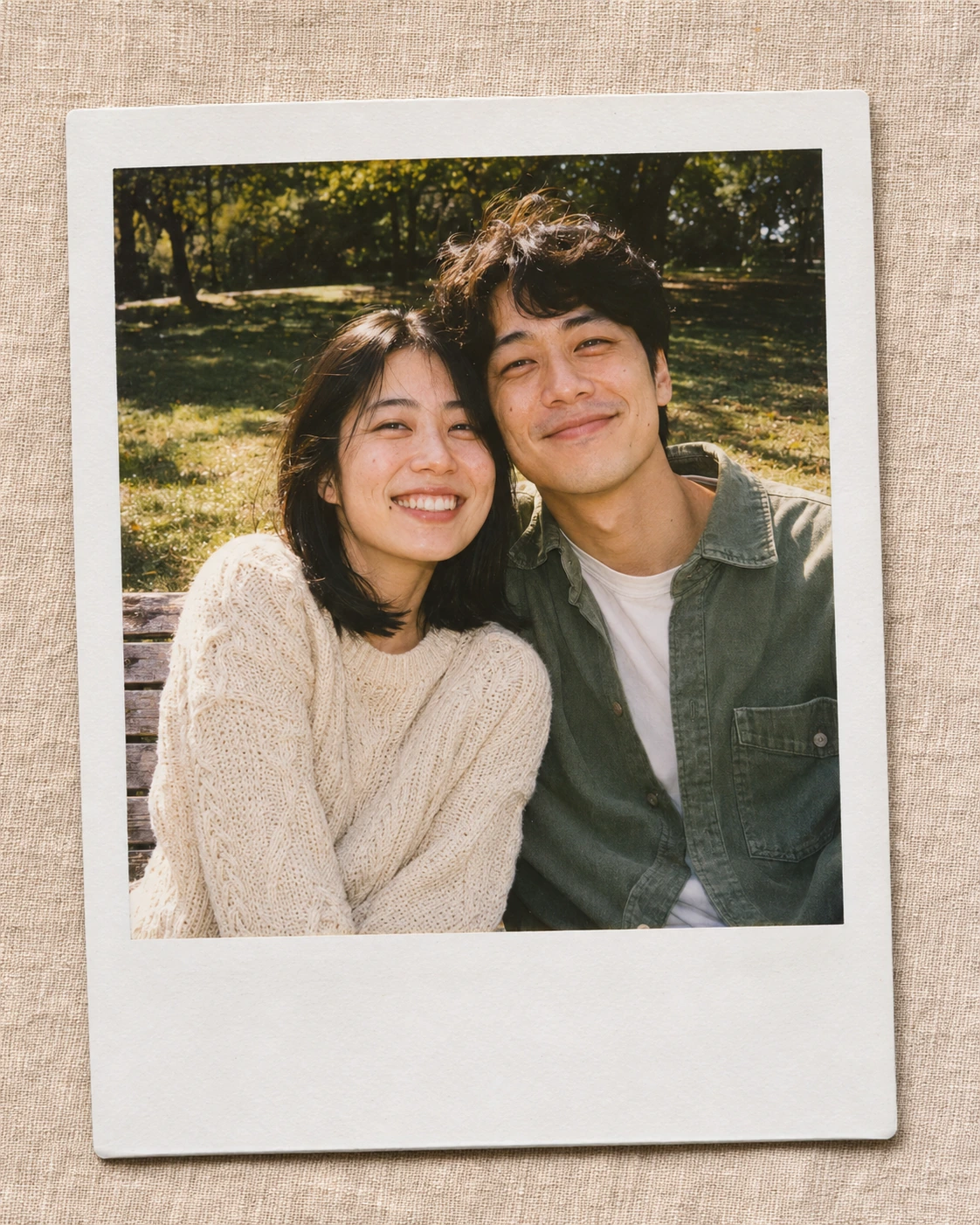
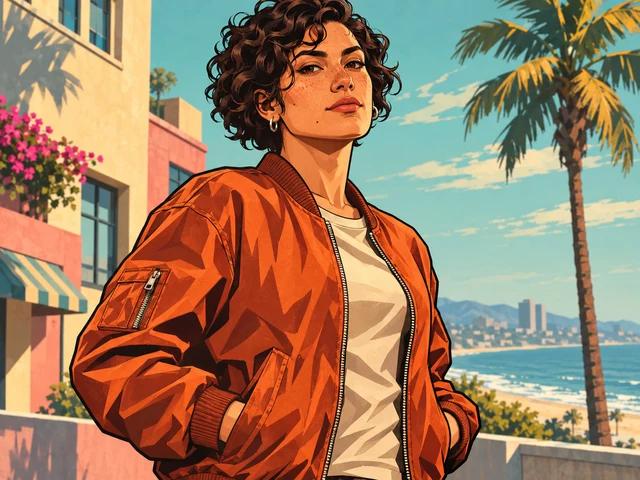
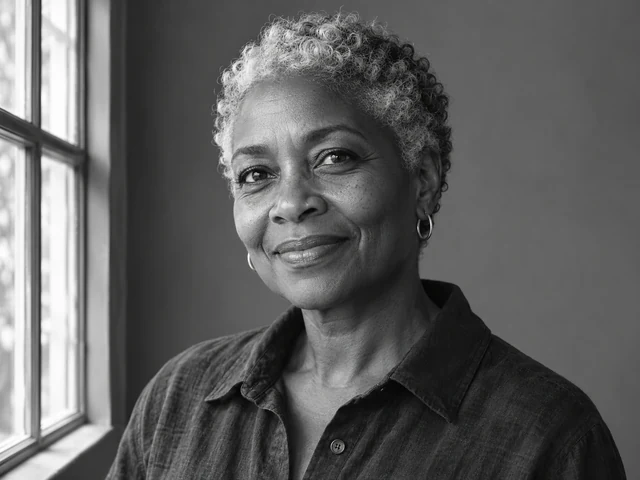
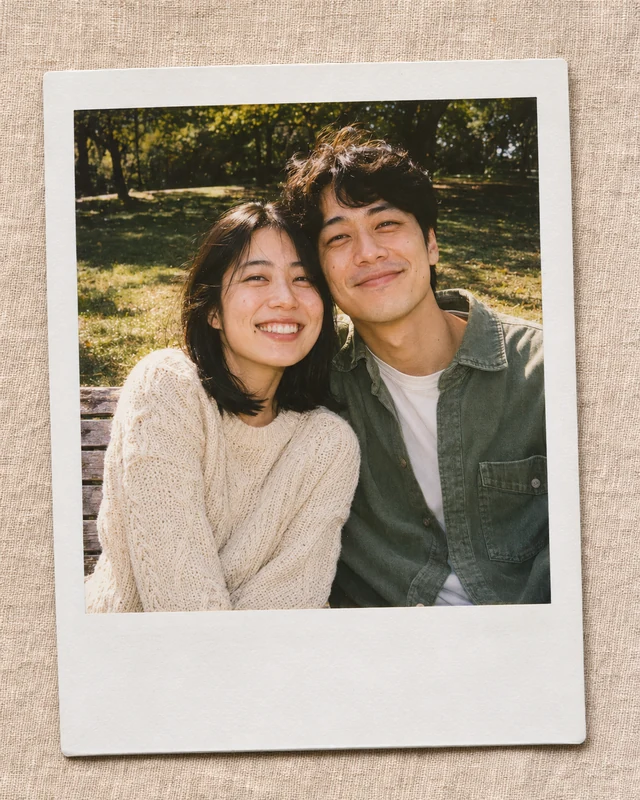
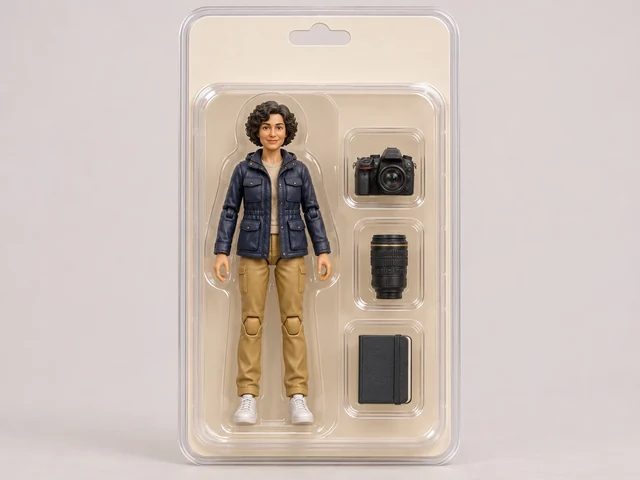
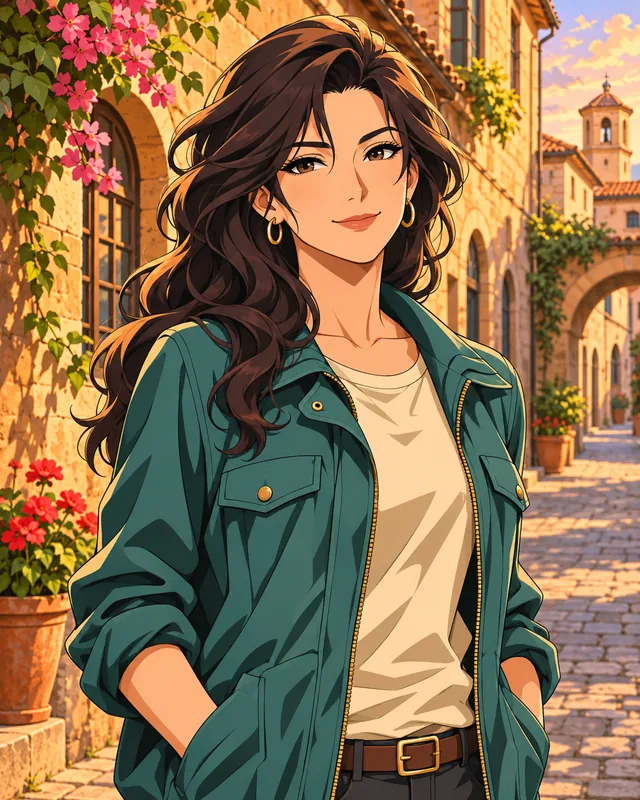
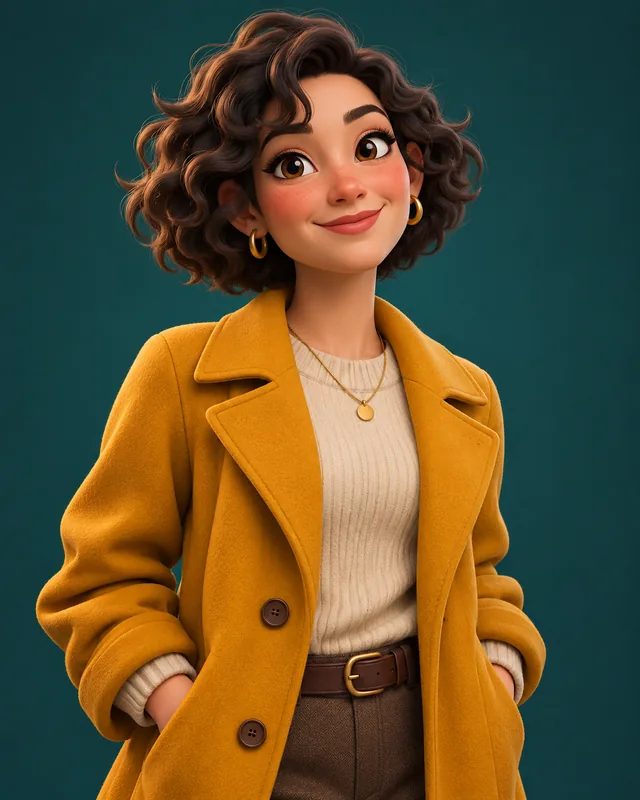
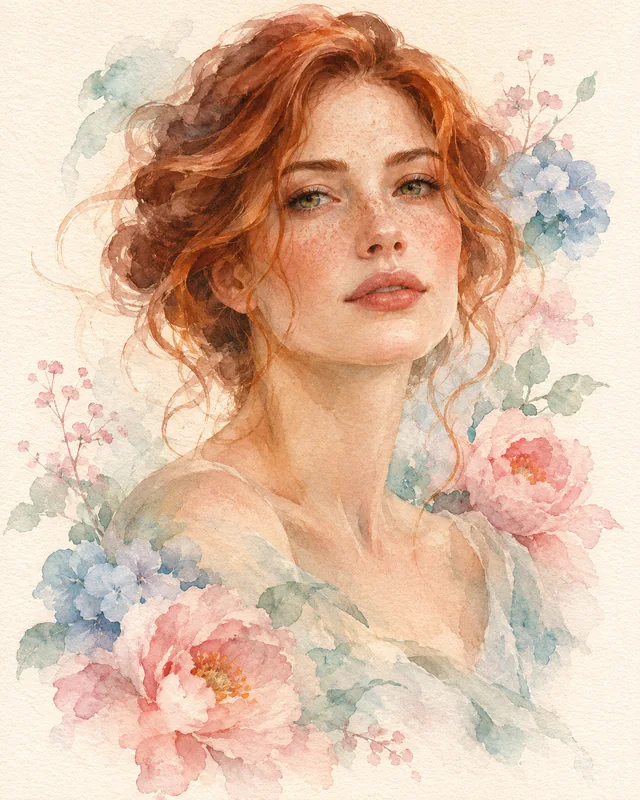
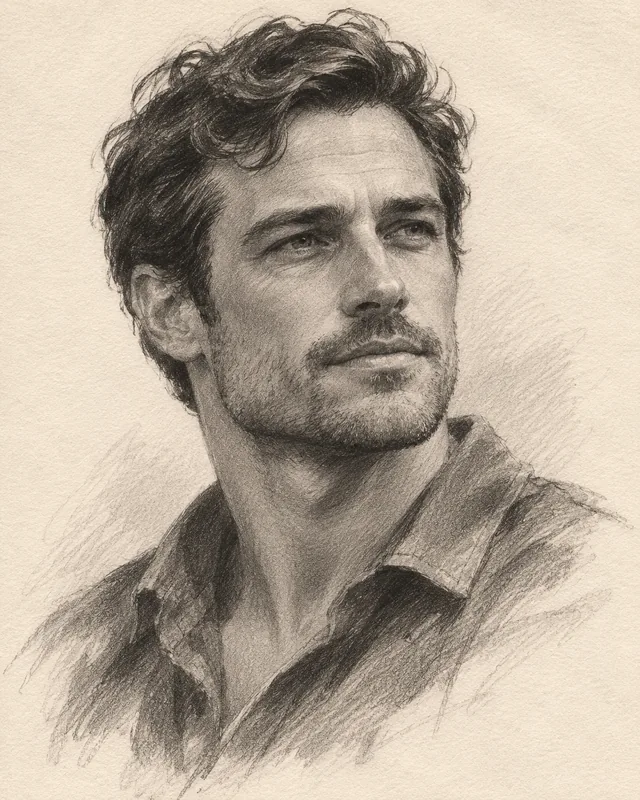
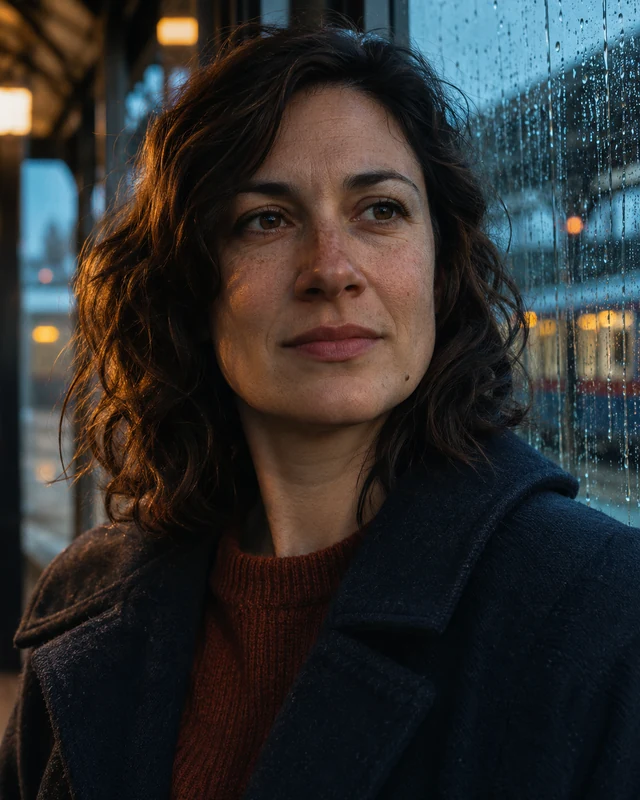
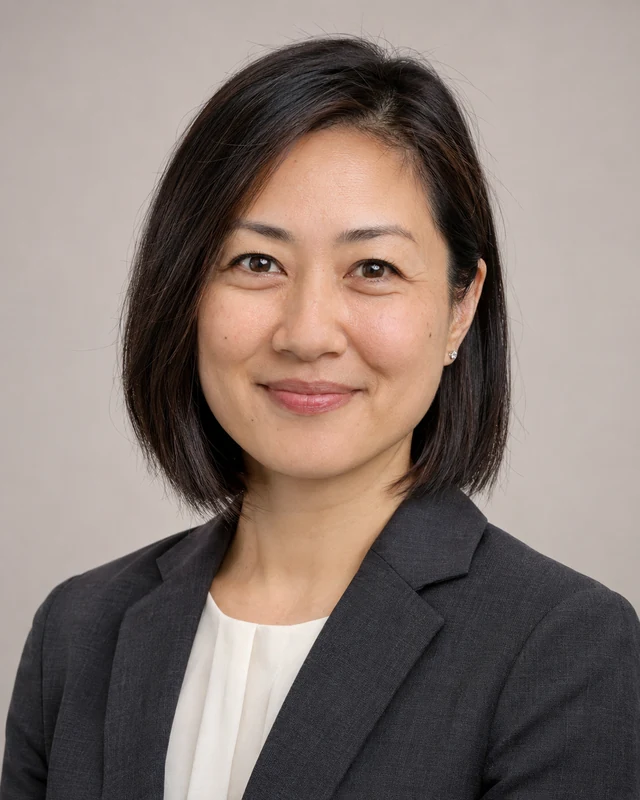
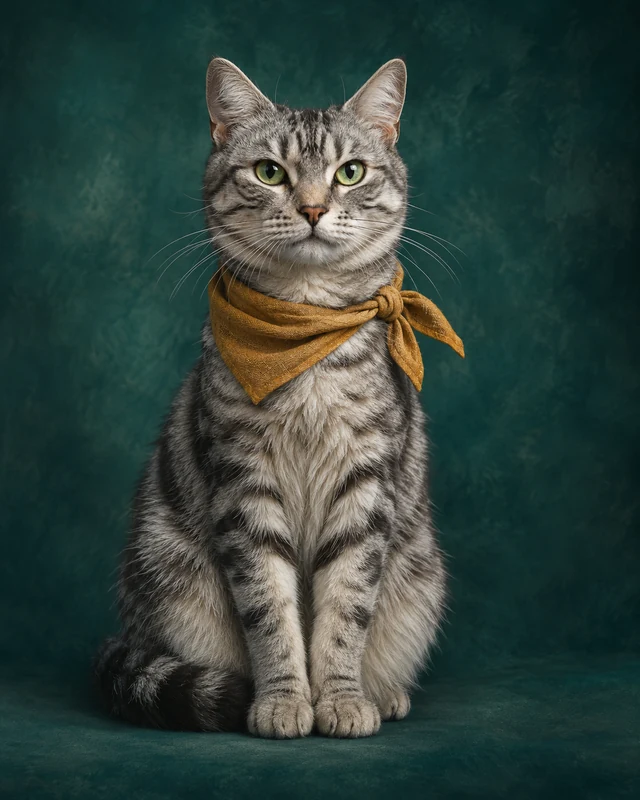
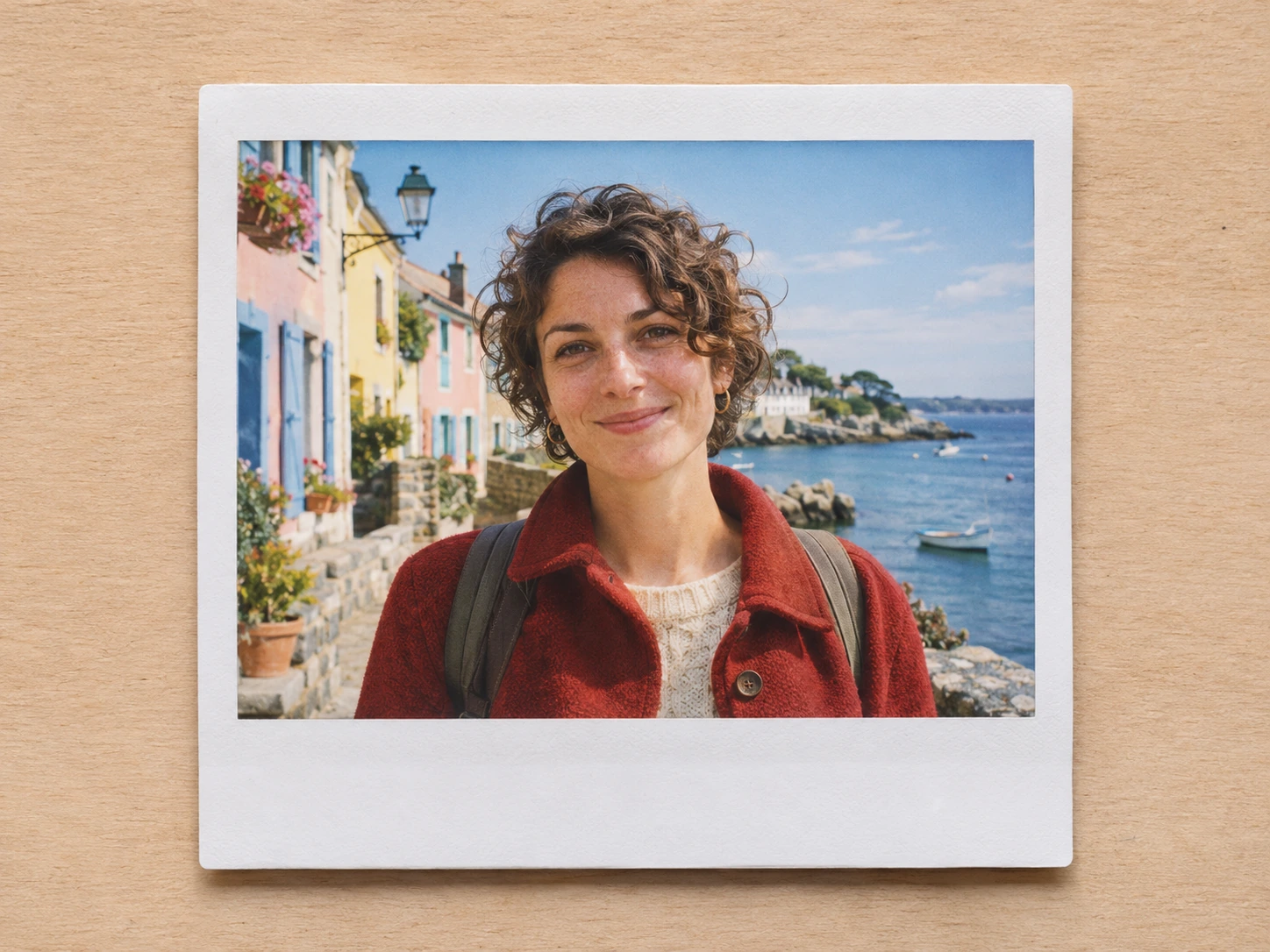
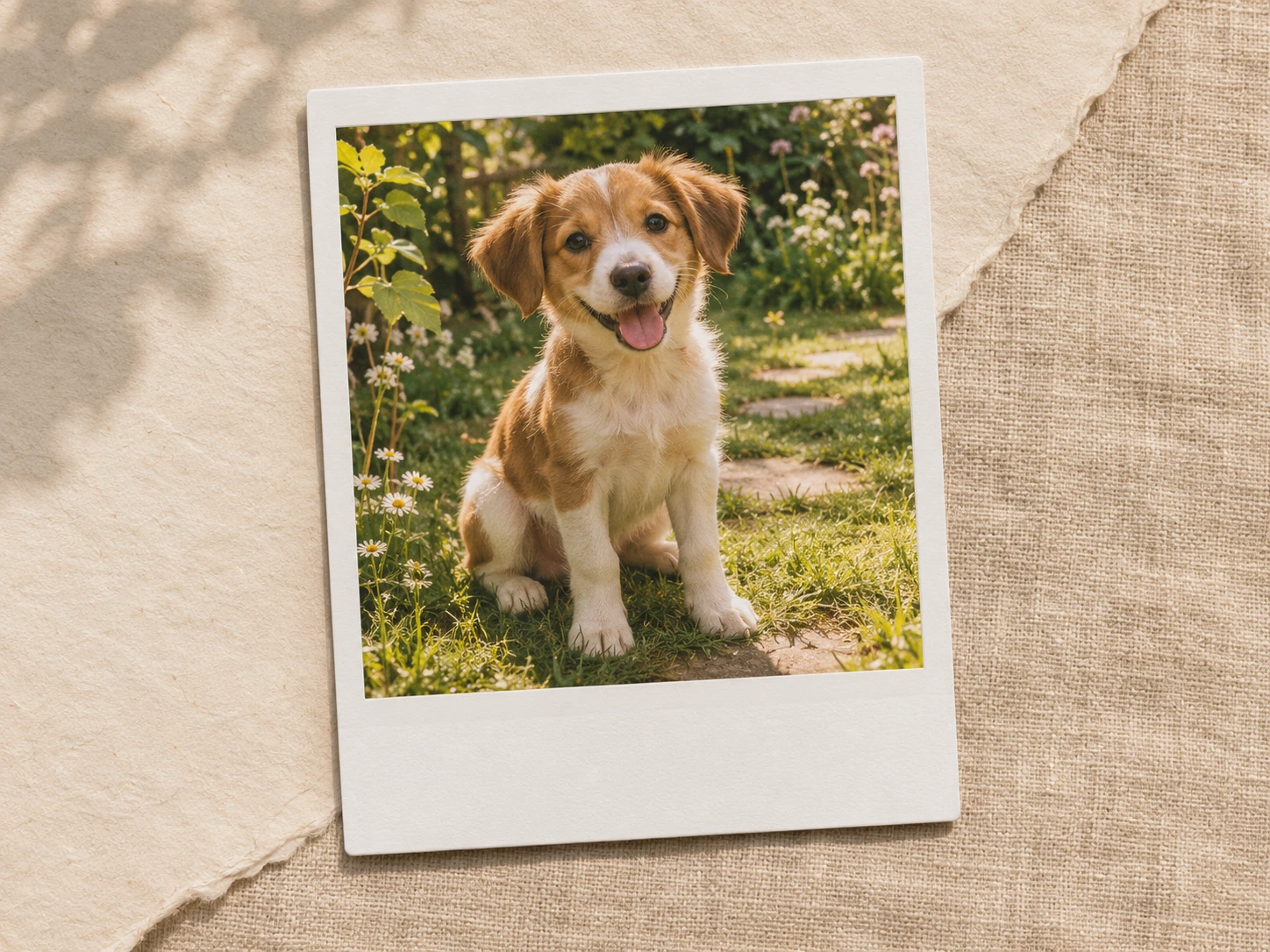
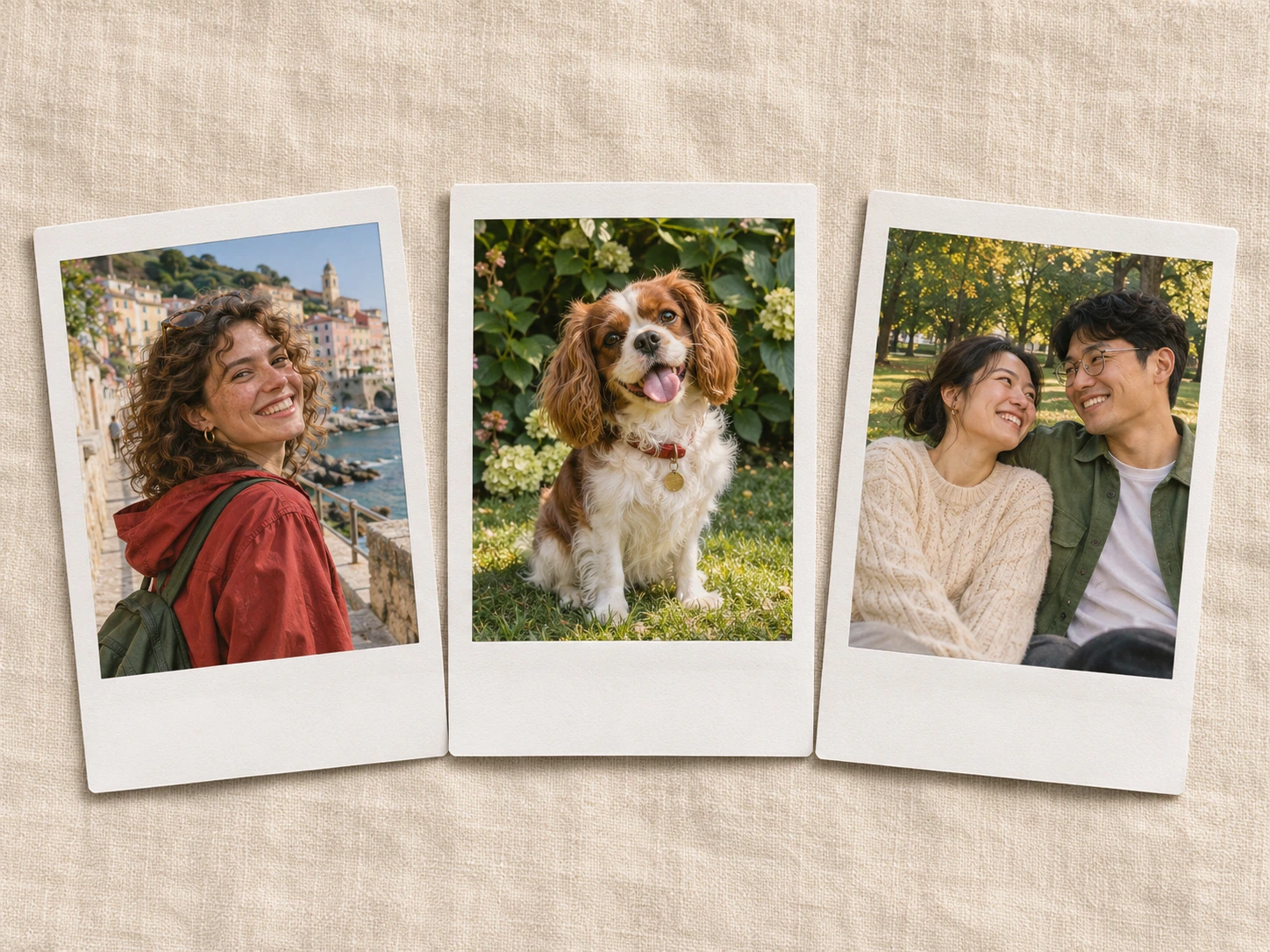
The AI Polaroid Photo Generator creates a new picture inspired by instant-film photography: a white border, a wider lower margin, soft flash, restrained grain and warm muted color. Describe a candid moment or add a reference photo to guide the people and setting. The goal is a personal, slightly imperfect visual mood rather than an exact record of a real event. Use the preset for portrait concepts, travel memories or playful keepsake-style artwork, then check the generated details before saving it.
Illustrative style preview. Generated results vary with your prompt and reference photos.
The small details behind a convincing instant-film look
A border alone does not create the feeling. Light, framing and a believable moment need to work together.
Frame the moment, not just the face
A casual gesture, a slightly off-center composition or a familiar setting can make the image feel more personal. Describe what the subject is doing and why the scene matters. Keep the action simple enough to read in a small framed picture. If several people appear, use clear references and inspect each face rather than assuming they will all be reproduced accurately.
Choose one readable moment or gesture.
Let the background explain the occasion without crowding it.
Check every subject when using a group composition.
The preset favors muted warmth and a soft direct-flash impression. A room lamp, evening doorway or party backdrop can support that treatment. Tell the model if you want a brighter daytime scene instead. Heavy orange color and excessive grain can obscure faces, so begin with a restrained treatment and increase the effect only when it helps the mood.
Describe whether the scene is indoors, outdoors or near a window.
Keep skin and clothing readable under the color treatment.
Ask for subtle grain rather than a damaged-film effect by default.
The white border and deeper lower margin are part of the image direction, so frame important details with breathing room. The preset begins with a square canvas, but the inner photo and border still need a balanced composition. Avoid placing eyes, hands or important objects at the edge. Add exact dates or captions in a separate layout tool when their spelling and placement must be reliable.
Keep the main subject inside a comfortable inner crop.
Review whether the border looks balanced on all sides.
Leave the bottom margin blank when you plan to add your own caption.
For several related images, reuse a consistent description of light, color and camera distance while changing the scene. The same preset gives you a starting direction, but each result remains a new generation. Compare the border treatment and warmth across the collection. Download the versions that belong together instead of expecting identical appearance from every attempt.
Keep one palette and lighting description across the series.
Change the subject or setting deliberately, not everything at once.
Review each output before arranging a collage elsewhere.
Choose a moment, set the frame and inspect the result like a small finished photograph.
Step 1
Describe the moment or add photos
Select Polaroid and write who appears, what they are doing and where the moment takes place. Add reference photos to guide the people or an important object. Upload up to eight PNG, JPEG or WebP files, one at a time. Use a smaller file if an upload exceeds the limit.
Polaroid
1:116:92K
Step 2
Choose the output and submit
Keep the square starting ratio or choose another supported format. Select a resolution and check the credit estimate shown on Generate. Sign in to upload or generate, and keep the text within the limit shown in the editor because the preset also contributes styling instructions.
Step 3
Inspect the photo and border
Review facial details, hands, the setting and the thickness of the white frame. Check whether the warmth and grain support the image rather than hide it. Download a version you like, or reuse the prompt to adjust the lighting, pose or composition.
Choose based on whether you want a new interpretation or the original photograph with a simple border.
Decision
Polaroid-style generation
Adding a border externally
Source image
A reference guides a newly generated picture.
The original picture can remain unchanged.
Color and light
Reinterprets warmth, grain and flash treatment.
Only changes when you apply additional edits.
Framing
The scene and border are generated together.
You position a fixed photo inside a frame.
Exact captions
Add exact wording separately after generation.
A layout tool lets you place your own text.
Best use
Explore a new keepsake-inspired visual concept.
Preserve an existing photo and decorate its edge.
Ideas for your instant-film images
Give each image a specific memory-like scene rather than relying on the border to tell the story.
01
Travel-inspired keepsakes
Reimagine a traveler in a memorable street, cabin or coastal setting. Keep the location’s most recognizable detail and simplify the rest. Treat the result as artwork inspired by the trip, not proof that a generated event actually happened.
Use relaxed poses, familiar clothing and a simple party setting to communicate the occasion. With multiple people, check all faces and limbs. Keep references clear and explain who should appear together if the input could be ambiguous.
Develop a small collection around seasons, places or everyday rituals. Keep the same border and color direction in the prompts, then select the outputs that work as a set. Layout and handwritten captions can be added in your own design tool.
Describe the animal’s coat, pose and favorite setting, using a reference when distinctive markings matter. A simple chair, blanket or doorway can make the scene personal. Review paws, ears and markings before deciding that the result represents your pet well.
Use ordinary details to make the moment feel personal and readable.
PROMPT EXAMPLE 1
Cozy evening portrait
A candid portrait in a cozy living room, relaxed smile, cream knit sweater, warm direct flash, softly blurred books behind, subtle film grain, clean white instant-photo border, blank bottom margin.
One familiar background detail is enough to suggest a lived-in room.
PROMPT EXAMPLE 2
Weekend coast
A traveler holding a sun hat beside a quiet seaside cafe, late afternoon, faded blue and warm beige tones, casual waist-up framing, gentle grain and a balanced white instant-film border.
Keep the horizon away from the face so the background stays quiet.
PROMPT EXAMPLE 3
Pet by the window
A small dog resting on a checked blanket beside a window, natural curious expression, soft warm light, candid close view, muted colors, subtle instant-film texture and an empty white lower border.
Describe the coat markings when they are important to recognition.
Keep the nostalgic treatment believable
A restrained effect gives the subject more room to remain recognizable.
Avoid making every surface look damaged
Grain, faded color and soft flash can suggest instant photography without scratches or heavy stains. Start with subtle texture. If the face loses detail, reduce the effect rather than asking for more sharpening and stronger aging at the same time.
Keep the inner photo balanced
Leave enough space around the subject for the border to feel intentional. Watch for cropped hands or a head pressed against the upper edge. A simple pose and a slightly wider camera distance can make the whole picture more comfortable.
Separate generated art from real documentation
A convincing nostalgic picture can look like a historical photograph. Present generated scenes as creative interpretations when context matters. For a real event record, keep the original photo rather than replacing it with an invented moment.
Polaroid-style image questions
Will my original photo stay exactly the same?
No. A reference helps guide a newly generated image, so faces, poses and objects can change. If you only need to add a white frame while preserving every original detail, use a regular photo layout or border tool instead.
Does the preset include the white border?
The preset asks for a white instant-film-style border with a wider lower margin. Inspect the returned image because the exact border thickness and shape can vary. Leave important subjects away from the edges when writing the brief.
Can I add a handwritten date or caption?
You can describe lettering, but generated text may be inaccurate. For a specific date, name or message, request a blank lower margin and add the wording afterward in a design tool. This gives you predictable spelling and placement.
Can I create a picture from text only?
Yes. Describe an original scene, the people or animal, the setting and the lighting. A reference is optional. Keep the action simple and the composition readable so the instant-film frame has a clear subject to hold.
Is this a physical print or an official Polaroid product?
No. The tool creates a digital image with an instant-film-inspired appearance. It does not provide physical printing or official branded film. If you print elsewhere, check the downloaded file’s dimensions and the requirements of that print service.
What do I need before generating?
Sign in, prepare a clear description and select the image settings. Generation uses account credits; the button displays the current estimate. Add up to eight PNG, JPEG or WebP references, one at a time. If an upload exceeds the limit, try a smaller file.
Create a small scene worth keeping
Choose a person, a place and one simple moment. Let the instant-film treatment support the story, then review the details and save the version that feels right.
Independent instant-film-inspired preset, not a physical or official branded product. Samples are illustrative; generated scenes should not be presented as documentary evidence.