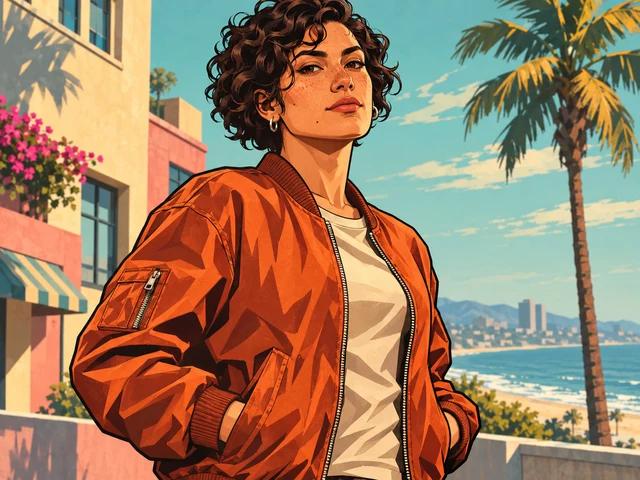
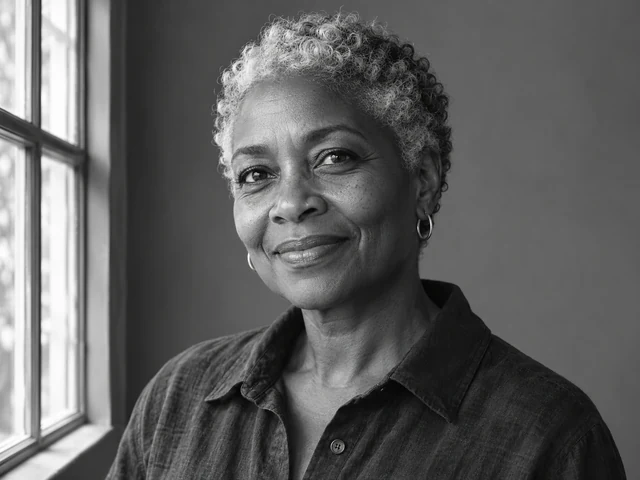
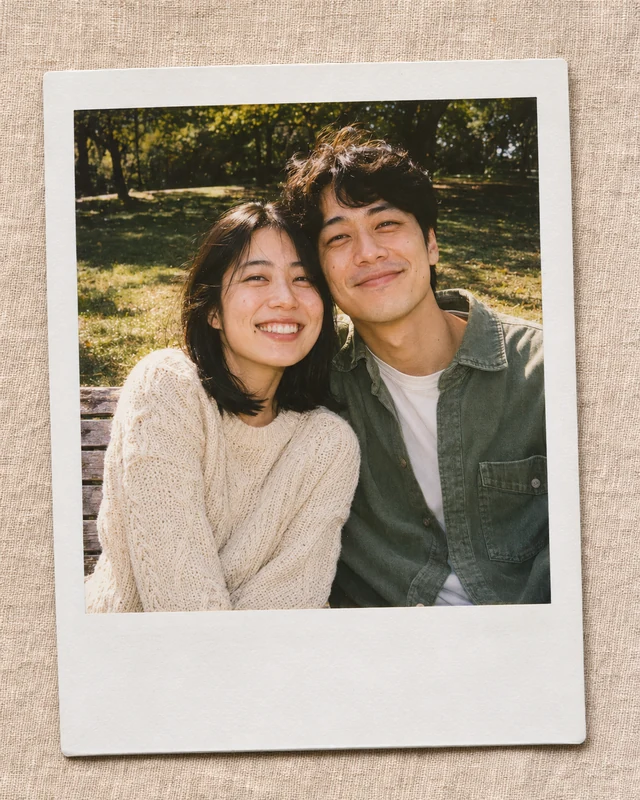
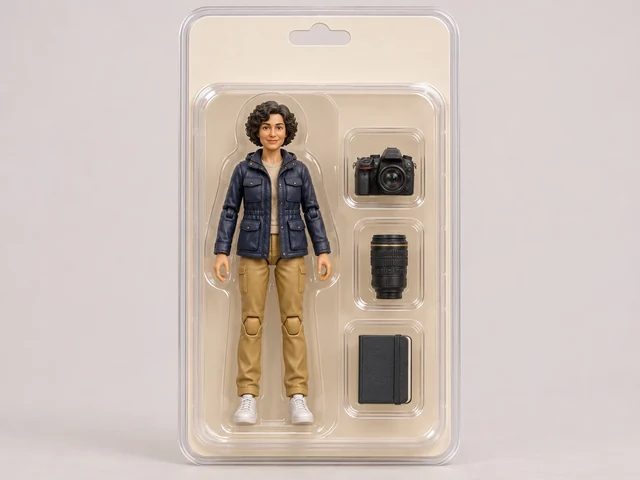
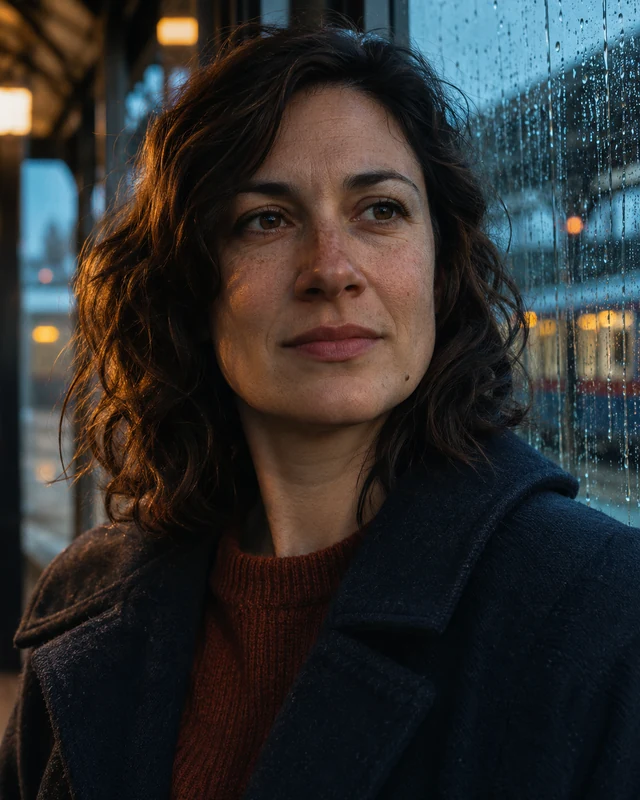
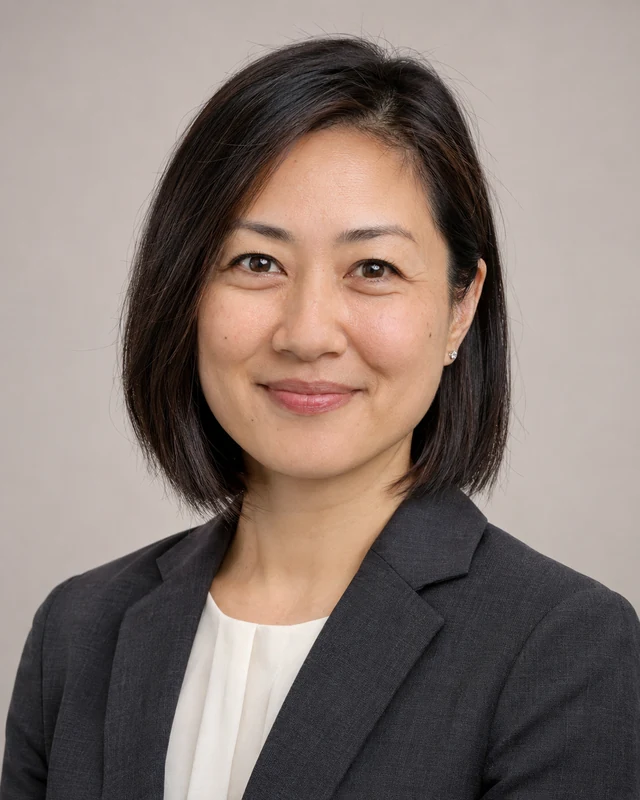
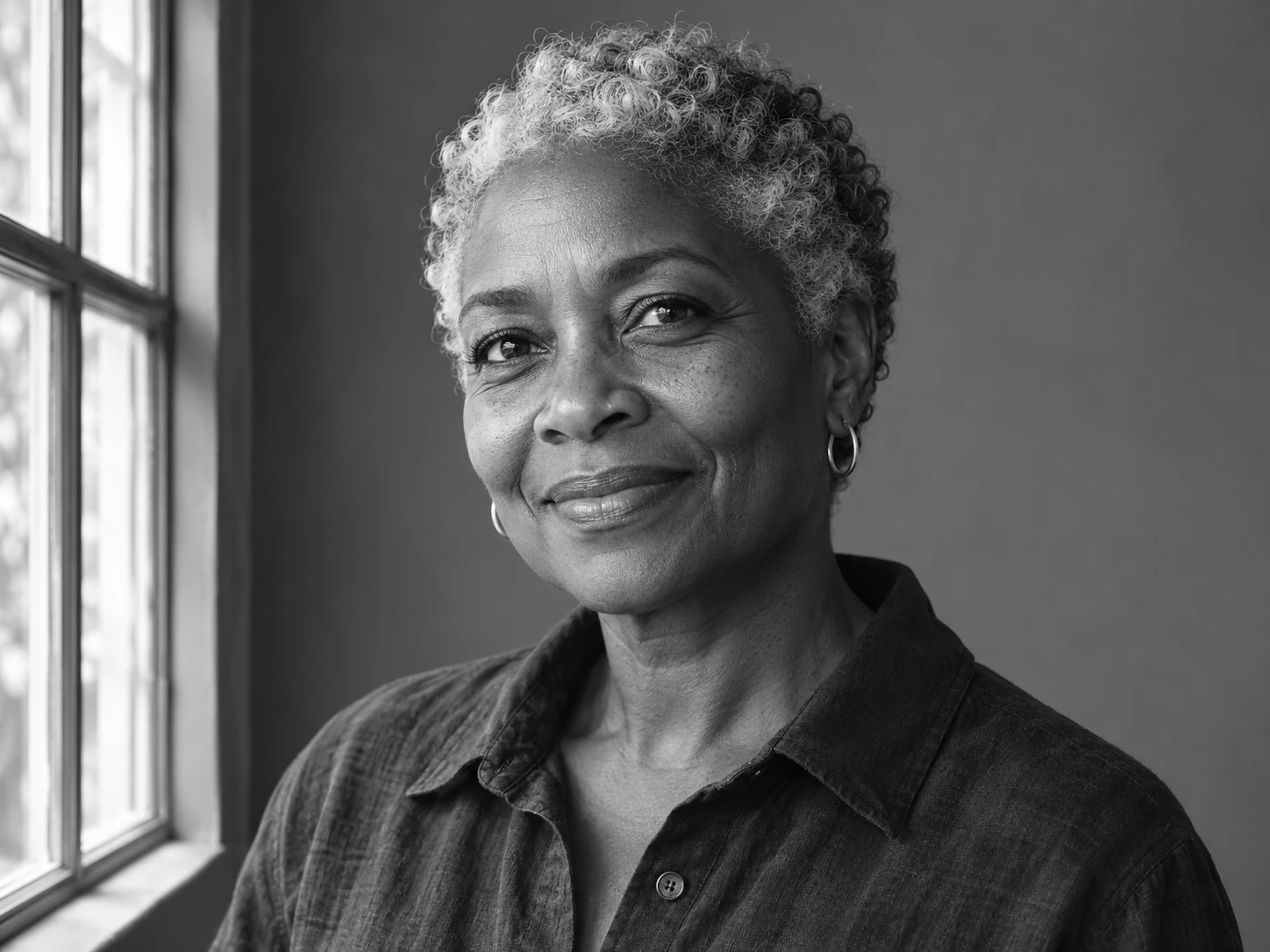
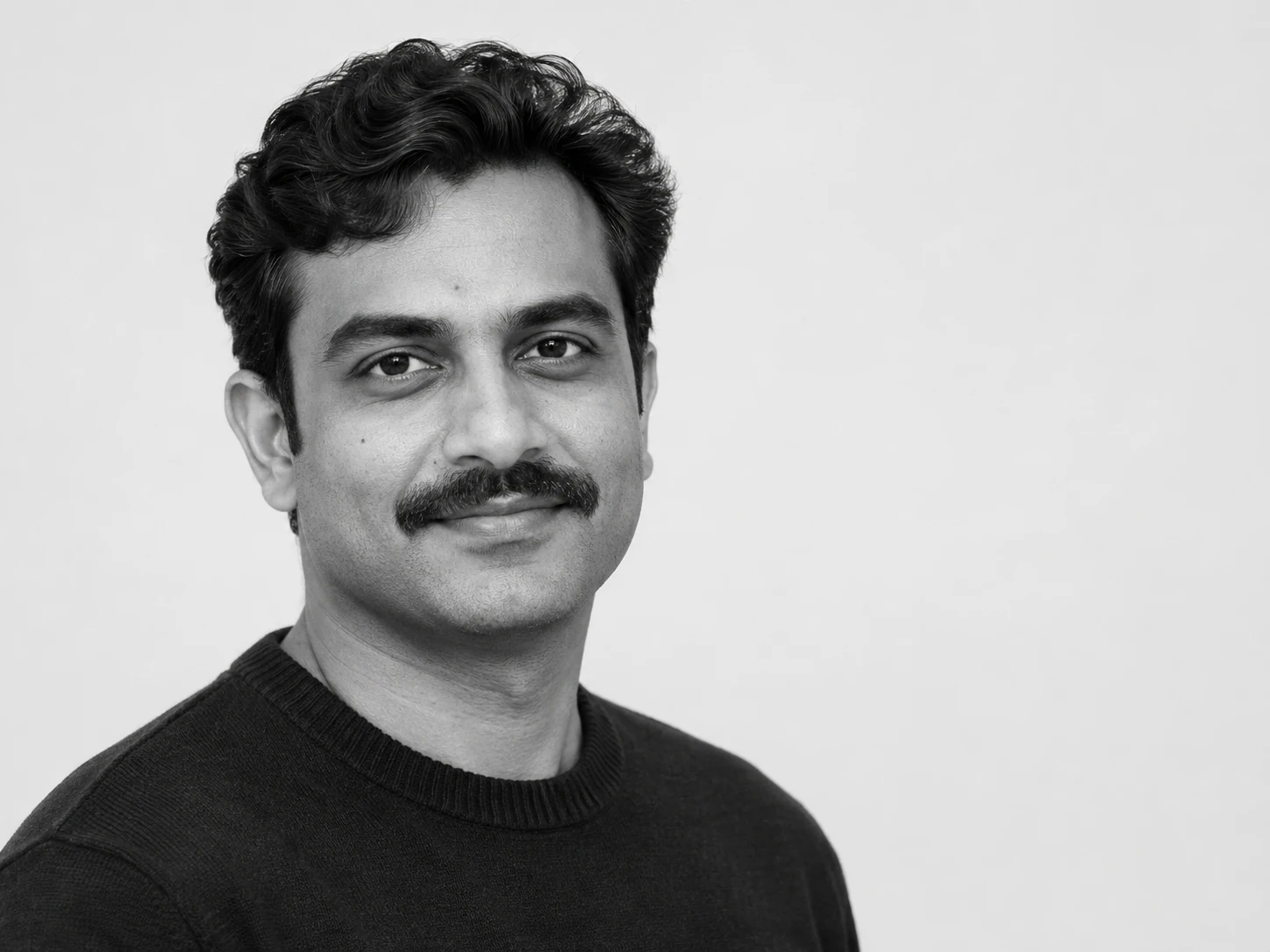
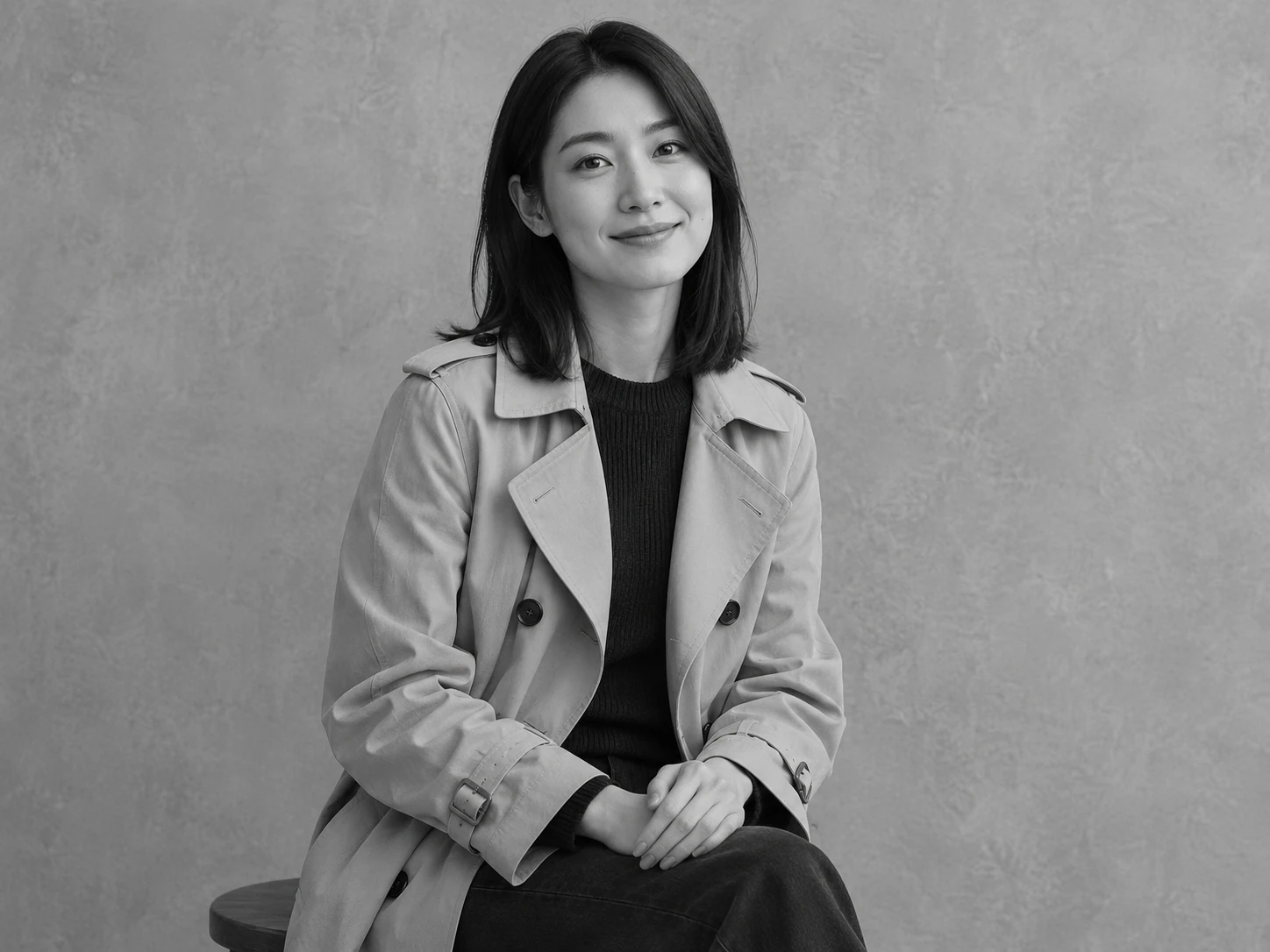
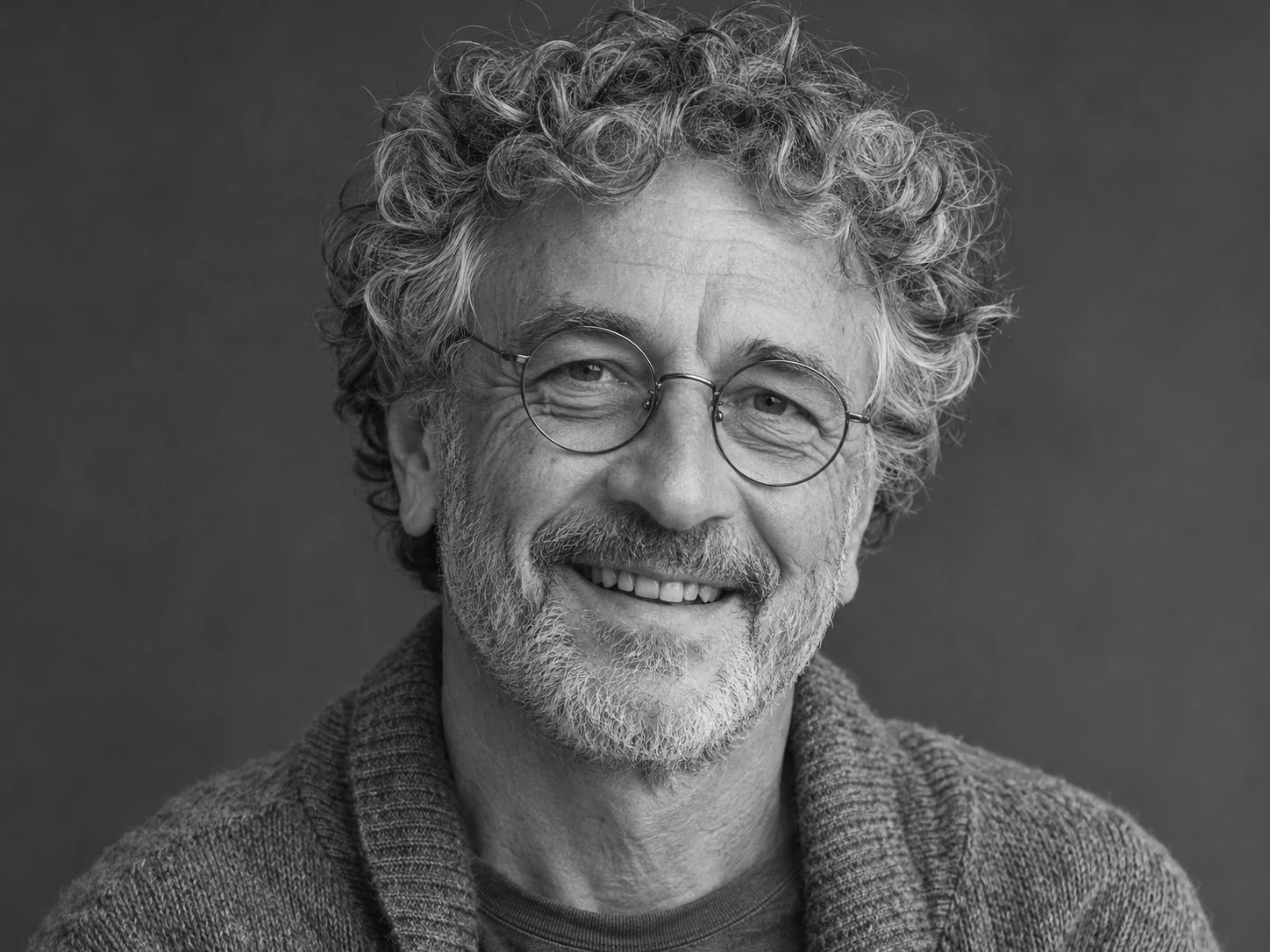
The AI Black and White Portrait Generator explores a portrait through light, shadow and texture rather than color. Add a reference photo or describe an original subject, then direct the expression, camera distance and background. The preset favors detailed skin, expressive eyes and soft directional light. It creates a new image instead of simply removing color from the original, which gives you room to reimagine the mood while making careful result review essential.
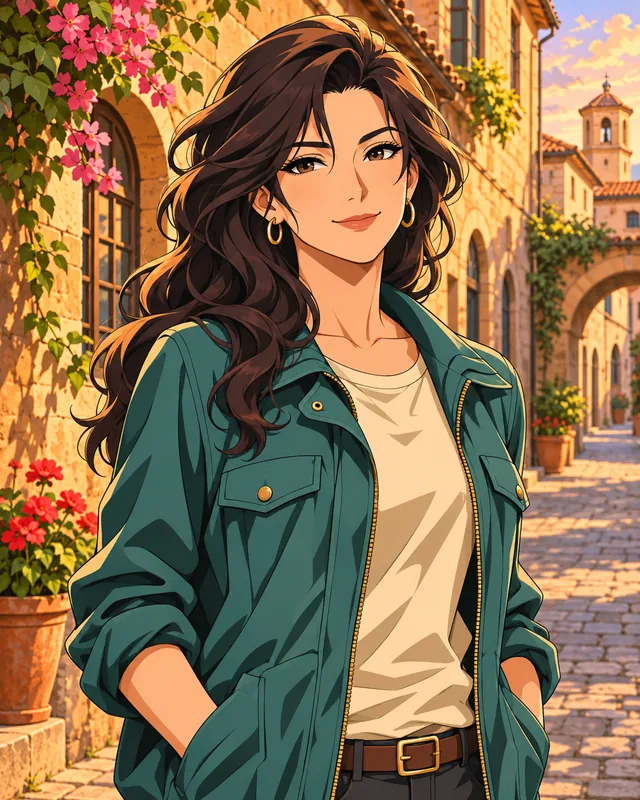
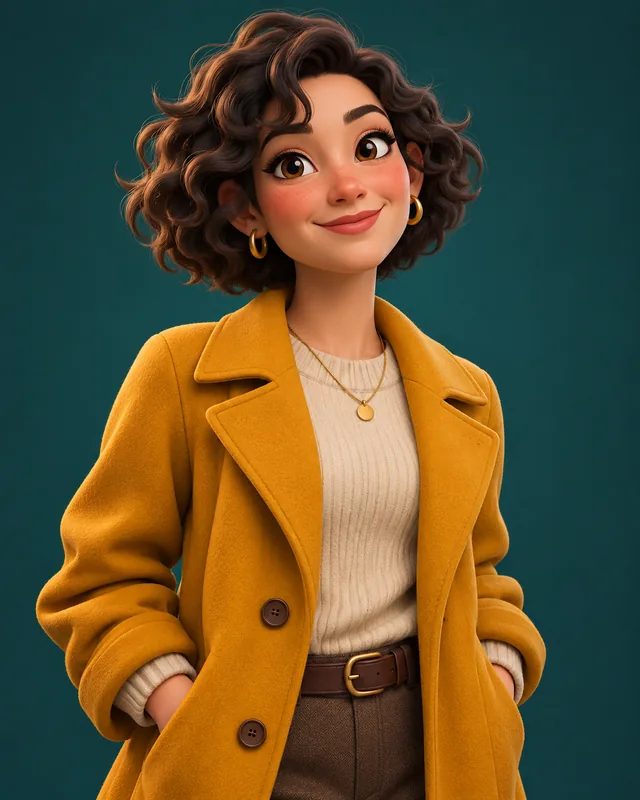
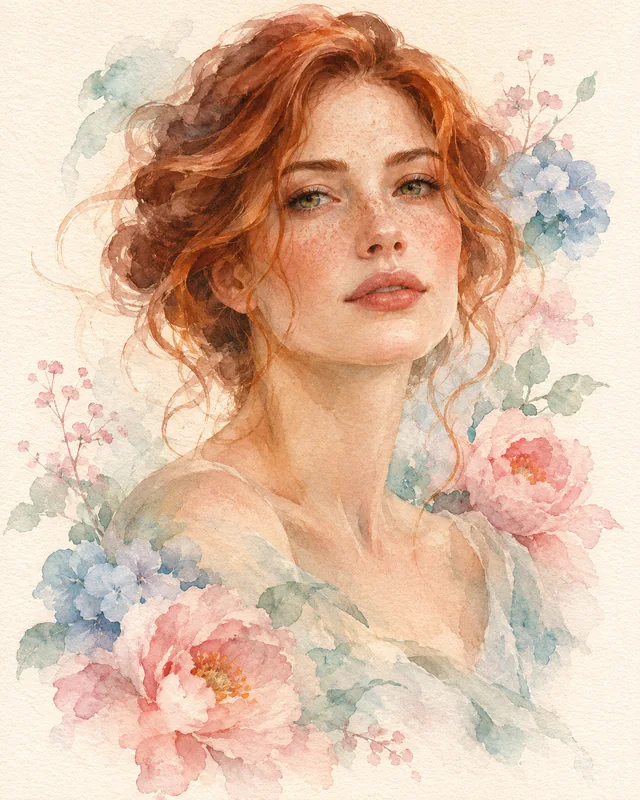
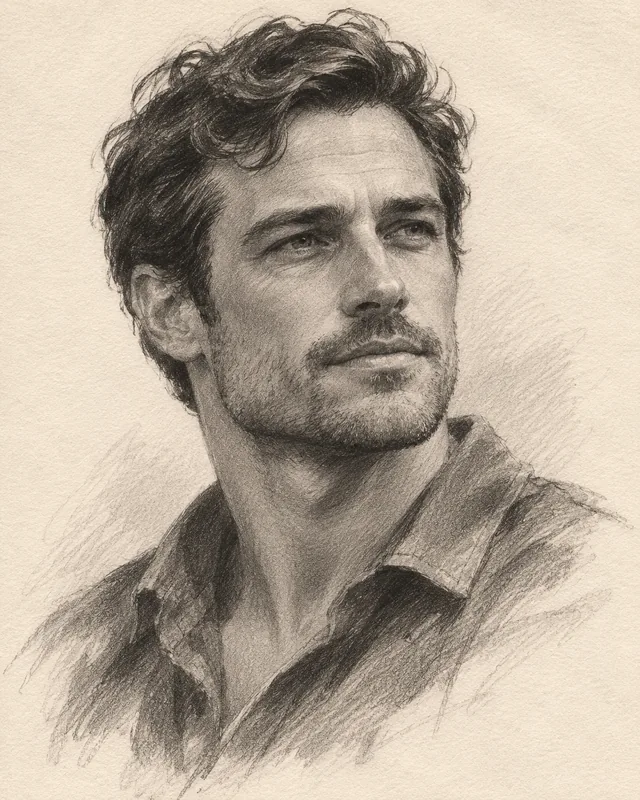
Illustrative style preview. Generated results vary with your prompt and reference photos.
Build a portrait with depth, not just desaturation
Small decisions about light and framing have a large effect when color is no longer available to separate the subject.
Use light to describe the face
Soft light from one side can reveal the cheek, nose and jaw without turning every shadow into a hard edge. Tell the model where the light comes from and whether the mood should feel gentle or dramatic. Keep enough detail in the eyes to make the expression readable. A completely dark side of the face can be striking, but it may also hide features you wanted to preserve.
Specify a window, softbox or another clear light direction.
Choose gentle tonal transitions or deliberate high contrast.
Review eye detail before judging the overall drama.
A plain dark background can emphasize a brightly lit face, while a pale studio backdrop can create a lighter editorial mood. Describe the separation you want between hair, clothing and background. Objects behind the head can become distracting shapes once their colors disappear. Simplify the location when the expression should do most of the storytelling.
Avoid a background tone that absorbs the hair silhouette.
Use space around the face to strengthen the composition.
A close-up emphasizes expression and texture; a half-body frame can include posture and clothing. The preset starts with a 3:4 portrait ratio. Change the ratio if you need a square profile image or a wider editorial composition. Leave room above the head and around the shoulders when the final platform may crop the picture automatically.
Say close-up, head-and-shoulders or half-body explicitly.
Check the portrait in a circular crop when used as an avatar.
Pick resolution separately from the image’s aspect ratio.
A useful reference is sharp enough to show facial structure without heavy filters. Tell the model which characteristics matter, such as a natural expression, glasses or short curly hair. Avoid contradictory requests for both untouched texture and completely smooth skin. Compare the generated face with the reference, especially around the eyes, nose and mouth, before deciding whether the interpretation fits.
Choose an image with an unobstructed face.
Describe the mood rather than a long list of beauty claims.
Start with a clear face or a specific character description, then decide what the light should communicate.
Step 1
Choose your subject
Select Black & White and add a clear photo to guide the subject. Add up to eight PNG, JPEG or WebP references, one at a time. Use a smaller file if an upload exceeds the limit. For a fictional portrait, describe the person, clothing and expression without uploading a photo.
Black & White
1:116:92K
Step 2
Direct the lighting and composition
Write a short instruction about light direction, background and camera distance. Choose the aspect ratio and 1K, 2K or 4K resolution, then check the displayed credit estimate. Sign in before generating. The preset shares the total prompt limit, so follow the remaining allowance shown in the editor.
Step 3
Check tones and facial detail
Review the result at normal size and then zoom in on the face. Check whether the eyes are readable, the shadows retain enough detail and the skin treatment looks appropriate. Download the result or reuse the prompt to adjust one lighting or framing decision.
Black and white generation or a color-removal filter?
These workflows solve different tasks. Choose generation when you want to reinterpret the portrait rather than retain every original pixel.
Decision
AI portrait generation
Simple desaturation
Composition
Can reinterpret framing from your instructions.
Usually keeps the original arrangement.
Lighting
Describe a new lighting direction or atmosphere.
Keeps the light already captured in the photo.
Face detail
Creates a new interpretation that needs review.
Retains existing details in the source image.
Background
Ask for a simpler or different setting.
Does not remove background objects by itself.
Best use
Explore an original monochrome portrait direction.
Remove color while keeping the same photograph.
Portraits where expression matters
Use monochrome deliberately when tone and character are more important than colorful surroundings.
01
Personal profile concepts
Explore a restrained profile portrait with a clear face and simple background. Keep the crop generous enough for different platforms. Before replacing a real profile photo, decide whether an AI interpretation represents you in the way you intend.
Use expression, posture and a small number of contextual details to establish character. A hand near the face or a visible instrument can be meaningful, but review anatomy and object shapes closely before using the image publicly.
Compare gentle window light with a stronger studio treatment for a publication or campaign concept. Keep the subject description stable so the lighting difference is easy to assess. Use these images to communicate direction rather than document an actual shoot.
Develop a fictional character’s emotional tone through gaze, age, posture and wardrobe. Removing color can help you focus on the face. Check that background texture and heavy shadows do not undermine the expression you wanted to explore.
Keep each brief focused on one relationship between subject, light and background.
PROMPT EXAMPLE 1
Soft window portrait
Head-and-shoulders portrait, relaxed expression, soft window light from the left, natural skin texture, dark plain background, gentle tonal transitions and visible eyes.
Ask for visible eye detail when you want a quiet rather than mysterious mood.
PROMPT EXAMPLE 2
Dramatic studio study
A thoughtful fictional writer in a dark knit sweater, half-body portrait, directional studio light, strong but detailed shadows, simple gray backdrop, subtle film grain.
Strong contrast does not need to erase all detail on the shadow side.
PROMPT EXAMPLE 3
Bright editorial portrait
An original portrait of a musician with short curly hair, light studio background, soft frontal light with gentle side definition, calm gaze, clean crop and restrained texture.
A pale background can work well when clothing provides tonal separation.
A more convincing monochrome result
Review structure and tone before adding stronger effects.
Keep texture in balance
Too much sharpness can make skin look brittle, while excessive smoothing can remove character. Ask for natural texture and inspect the face. If the result feels overprocessed, simplify the texture instruction before changing the whole scene.
Separate dark shapes
Dark hair, a black jacket and a dark wall can merge into one shape. Request a lighter background, softer shadow or subtle edge separation. The goal is a readable portrait rather than the maximum possible contrast.
Check the emotional direction
A small change in gaze or mouth shape can alter the meaning of a portrait. Compare the expression with your original brief. If it feels too severe, request a relaxed jaw or softer gaze instead of asking for a completely different face.
Black and white portrait questions
Does this simply remove color from my photo?
No. The preset asks the image model to create a new monochrome portrait using your description and optional references. Framing, lighting and facial details may change. Use a conventional desaturation tool instead when you need the original photograph preserved exactly.
What kind of reference photo works best?
Choose a sharp photo with an unobstructed face and enough light to see the features. Avoid tiny crops, strong beauty filters or several competing faces unless they are necessary for your idea. Explain which visible characteristics matter in the prompt.
Can I generate a portrait without a photo?
Yes. Describe an original subject with a clear expression, clothing and lighting setup. A text-only brief is useful for fictional character studies and editorial concepts. Review the result for plausible anatomy and the mood you intended.
Can I control how dramatic the portrait looks?
Describe contrast, light direction and background tone. Soft window light with visible shadows suggests a different treatment from a narrow studio light against a dark backdrop. Change one of those decisions at a time when comparing results.
Do I need an account and credits?
Uploading and generating require sign-in. A generation uses account credits, with the current estimate shown on the Generate button. Choose the resolution and check that estimate before submitting. Browsing this preset does not create a task.
Can I download and reuse the portrait?
A completed result provides a download action and a way to reuse its prompt. You can also open the image in the video generator, which starts a separate workflow. Review likeness and the requirements of your intended use before publishing the image.
Find the portrait in the light
Choose a clear subject, a deliberate light direction and a background that gives the face room to speak. Create a first version, then refine the expression and tones.